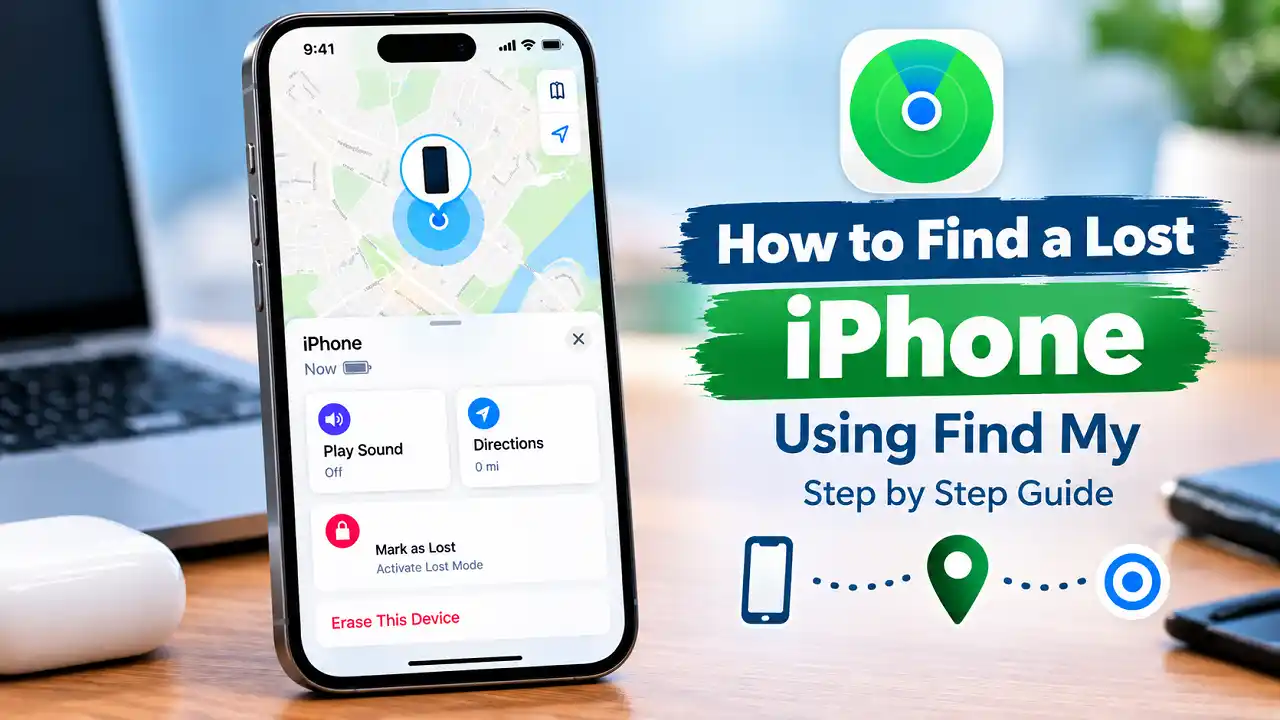

Knowing how to find a lost iPhone using Find My matters most in the first few hours, while the phone still has power. The catch: you’re probably on someone else’s device, and the phone that receives your verification codes is the one that’s missing.
Below are the exact steps from another Apple device, a borrowed phone, or any browser, plus what most guides skip: the 5-hour, 24-hour, and 7-day tracking windows, signing in without a code, when to keep your number off the lock screen, and why erasing doesn’t stop tracking.
If you think the phone was stolen, read the section on unfamiliar locations before you go anywhere.
First, Check That Find My Can Actually Help
Find My only works if it was switched on before the phone went missing. You can’t turn it on remotely. If you’re not sure, skip ahead to the next section and simply look: a phone with Find My enabled shows up in your device list, and one without it doesn’t appear at all.
Three settings on the lost phone decide how much Find My can do:
- Find My iPhone lets you see the phone’s location, play a sound, lock it, and erase it.
- Find My network lets nearby Apple devices report your phone’s location over Bluetooth when it has no Wi-Fi or cellular connection, and for a limited time after it’s turned off or the battery dies.
- Send Last Location makes the phone upload its location automatically when the battery gets critically low.
The ability to find a phone that’s switched off applies to iPhone 11 and later models (iPhone SE models are excluded) running iOS 15 or later, with the Find My network turned on. You don’t need to know which of these settings were on right now. The map will tell you what you’re working with.
Which Device to Search From (and What Each One Can’t Show You)
This is the decision most guides gloss over, and it affects what you’ll see. The Find My app on a device signed in to your own Apple Account gives you the fullest picture. The web version at iCloud.com/find is available anywhere, but it has real limits.
| Where you search from | What you need | Main limitation |
|---|---|---|
| Find My app on your iPad, Mac, or another iPhone signed in to your Apple Account | Just the device | None. This is where Apple shows offline locations reported by the Find My network, and it keeps the last known location for up to 7 days. |
| Find My app on a Family Sharing member’s device | You must already share your location with your family group | Only works if location sharing was set up beforehand. |
| iCloud.com/find in any browser (Windows, Android, Chromebook, a work laptop) | Your Apple Account email and password | Shows the phone only when it’s online. Keeps the last known location for just 24 hours. Doesn’t show locations from the Find My network. |
| Help a Friend in a friend’s Find My app | Their iPhone, plus your Apple Account password | Opens iCloud.com, so it has the same limits as the website. |
| Apple Watch paired with the lost iPhone | Watch within range of the phone | Only useful when the phone is close by. |
In practice: if you own an iPad or Mac, go there first. If you don’t, start with iCloud.com/find to mark the phone as lost quickly, then get onto a device signed in to your Apple Account as soon as you can, especially if the website shows the phone as offline.
How to Find a Lost iPhone Using Find My on Another Apple Device
On an iPad, Mac, or second iPhone signed in to the same Apple Account:
- Open the Find My app.
- Tap the Devices tab.
- Select your missing iPhone. The map zooms to its current or last known location.
- Tap the More button (the three dots) to see your options: Directions opens the location in Apple Maps, Play plays a sound, and the Lost iPhone section contains Lost Mode.
Look at the time under the phone’s name before you do anything else. “Now” or a time from the last few minutes means the phone is live and reporting. An older timestamp means you’re looking at where it was, not where it is. The next few sections explain how to act on each case.
Also turn on Notify When Found if the phone shows as offline. Apple sends a notification and an email when the device is located again, so you don’t have to keep refreshing the map.
Using a Family Member’s iPhone Without Signing In
If you’re in a Family Sharing group and you share your location with your family, your iPhone appears in their Find My app under their own devices. They can open Find My, tap Devices, scroll to your iPhone, and play a sound or turn on Lost Mode for you. No sign-in is required, which makes this the fastest option when you’re standing next to a family member.
How to Find Your iPhone From a Browser, Android Phone, or Windows PC
You don’t need an Apple device at all. Any modern browser works, including Chrome on an Android phone or Edge on a Windows laptop.
- Go to icloud.com/find.
- Sign in with your Apple Account email and password.
- Under All Devices, select your iPhone.
- Choose Play Sound, Mark as Lost, or Erase iPhone.
If the phone shows as offline, select Notify me when found to get an email when it reconnects.
Getting Past the Verification Code When Your Phone Is the Trusted Device
This is where many people get stuck. You sign in, Apple asks for a two-factor verification code, and the code goes to the phone you’ve lost.
At iCloud.com/find you don’t need that code. If a code prompt appears, look for the Find Devices button at the bottom of the window and select it instead. That gives you access to Find Devices only (not your email, photos, or other iCloud data), which is exactly what you need right now. Apple designed it this way so you can mark a device as lost even when it’s the one that receives your codes.
You do need your Apple Account password. If you don’t know it by heart, this is the moment you’ll wish you did, so add it to the setup checklist at the end.
Using a Friend’s iPhone With Help a Friend
On a friend’s iPhone, open Find My, tap the Me tab, scroll down, and tap Help a Friend. This opens iCloud.com in Safari. If it offers to sign in with your friend’s Face ID or Apple Account, choose the option to use a different Apple Account and enter your own details. When you’re done, sign out so your account doesn’t stay on their phone.
Because Help a Friend is just the iCloud website, it won’t show offline locations from the Find My network. If the phone shows as offline there, that doesn’t mean Find My has lost track of it; the Find My app on your own device may still have a more recent location.
How to Read the Map: “Offline,” “No Location Found,” and Timestamps
The label under your iPhone’s name tells you what kind of problem you have.
| What you see | What it means | What to do next |
|---|---|---|
| A location marked “Now” or a few minutes old | The phone is on, connected, and reporting | Go to it if it’s somewhere safe and familiar, or play a sound. If not, mark it as lost. |
| “Offline” with a location and an older time | The phone has no connection, is off, or its battery is dead. The pin is the last place it reported. | Mark it as lost, turn on Notify When Found, and go to the last location soon if it’s somewhere you’d expect (a restaurant, a friend’s car, your office). |
| “Not sharing location • Online” | The phone is connected but can’t send its location, for example because of a Location Services problem | It’s reachable, so mark it as lost and try playing a sound if you think it’s close. |
| “No location found” | More than 7 days have passed since the phone last sent its location | Find My can’t locate it. Mark it as lost if you haven’t, then move to reporting and securing your account. |
Treat any pin as an estimate. In apartment buildings, malls, and dense city blocks, the dot can land on the wrong building or the wrong floor, so use it to narrow your search rather than to accuse a specific address.
When the Map Says It’s Nearby: Play a Sound or Use Your Apple Watch
If the phone is probably in your home, car, or office, Play Sound is the quickest fix. It rings even when the phone is on silent. Play Sound needs the phone to be powered on and connected; an offline phone shows its location but won’t make noise.
If you wear an Apple Watch, you don’t need another device at all:
- Press the side button on the watch to open Control Center.
- Tap the Ping iPhone button. Your iPhone plays a sound.
- In a dark room, touch and hold the button so the iPhone’s flash blinks as well.
With an Apple Watch Series 9 or Ultra 2 (or later, excluding Apple Watch SE) and an iPhone 15 or later (excluding iPhone 16e and 17e), you also get Precision Finding: the watch shows a direction and distance to your phone, such as 50 feet, and the screen turns green when you’re close. Older combinations just play the sound.
If Your iPhone Is Off or the Battery Died: The 5-Hour, 24-Hour, and 7-Day Windows
A dead or switched-off iPhone is not automatically invisible. On supported models with the Find My network turned on, the phone keeps broadcasting a low-power Bluetooth signal that other people’s Apple devices can detect and report anonymously. How long that lasts depends on how the phone lost power.
| What happened to the phone | How long Find My can keep locating it |
|---|---|
| The battery ran down and the phone entered Power Reserve | Up to 5 hours |
| Someone turned it off while it still had charge | Up to 24 hours |
| After those windows, or on an unsupported model | No new locations. The Find My app shows the last known location for up to 7 days. iCloud.com shows it for only 24 hours. |
That table is your plan for the first day:
- In the first 5 hours after a dead battery, the map may still update if the phone moves near other Apple devices. Check the Find My app, not just the website.
- Within the first 24 hours of a phone being switched off, act on any fresh location right away. If someone powered it down deliberately, that’s a sign it may be stolen (see the next sections).
- Before day 7, write down or screenshot the last known location and its timestamp. After 7 days without a report, Find My shows “No location found,” and that information is gone.
If you enabled Send Last Location, the pin you see for a dead phone is usually where it was when the battery hit critically low, which is often the best clue you have.
Mark It as Lost Right Away, and Decide Whether to Show Your Number
Don’t wait until you’ve given up searching. Marking the phone as lost costs you nothing and protects you immediately, and you can turn it off the moment you get the phone back.
When you mark your iPhone as lost, Lost Mode:
- Locks the phone with your passcode.
- Suspends the payment cards and passes you use with Apple Pay.
- Can show a custom message and phone number on the lock screen.
- Can email you updates about the phone.
In the Find My app: Devices → your iPhone → More → scroll to Lost iPhone → Lost Mode → follow the prompts → Activate. On iCloud.com/find: All Devices → your iPhone → Mark as Lost → follow the prompts.
If the phone is off or has no connection, Lost Mode takes effect the next time it connects to Wi-Fi or cellular. Turning it on now means it’s waiting for the phone the moment it reappears.
Should you add a phone number? It depends on what you think happened:
- Probably misplaced (left in a rideshare, a restaurant, a friend’s house): yes. Use a number you can actually answer, such as a partner’s phone or your work line, not the number of the phone that’s missing. Add a short message like “This phone is lost. Please call to return it.”
- Probably stolen (taken from a bag, snatched, or showing up somewhere you’ve never been): leave the phone number and message blank. Apple’s own guidance is that a thief can use your contact details for scams aimed at getting your account information.
If Stolen Device Protection is on (it’s on by default for many iPhones since iOS 26.4), turning off Lost Mode away from your familiar locations requires Face ID or Touch ID. That means even someone who knows your passcode can’t simply switch Lost Mode off. Apple still recommends marking the phone as lost quickly, because Stolen Device Protection’s extra safeguards only last for a period of time.
If Find My Shows It Somewhere You Don’t Recognize
A phone that turns up at an unfamiliar address, or that someone switched off shortly after you lost it, should be treated as stolen. Apple’s advice is direct: don’t try to recover it yourself. Contact local law enforcement instead.
What helps the police most:
- A screenshot of the Find My map showing the address and the timestamp.
- Your iPhone’s serial number or IMEI. You can find these without the phone: sign in at account.apple.com and look under your devices, or check the original box.
- The approximate time and place you last had the phone.
Also:
- Mark it as lost if you haven’t already, without contact details.
- Don’t remove it from Find My. Removing the device from your list removes Activation Lock, which makes it much easier for a thief to erase and resell the phone.
- Call your carrier (AT&T, Verizon, T-Mobile, or whoever provides your service) to report the phone stolen and suspend your line so it can’t be used to receive your texts and calls. If your phone is insured through the carrier, ask them to start a claim.
One more thing to expect if Stolen Device Protection is on: if you (or anyone else) used the iPhone to change your Apple Account password at an unfamiliar location, the phone may temporarily stop appearing on the map at iCloud.com/find. You can still mark it as lost.
Ignore Any Message Saying Apple Found Your iPhone
After a theft, it’s common to get a text, email, or call claiming your iPhone has been found, usually with a link to a page that looks like Apple’s sign-in screen. Apple states plainly that it never contacts you to say your iPhone has been found.
The goal of these messages is your Apple Account password or a verification code. With that, a thief can remove your phone from Find My, which removes Activation Lock and turns a locked brick into a phone they can sell. Don’t tap links in these messages, don’t call back numbers they give you, and never share your passcode, password, or a verification code with anyone. If you want to check the status of your phone, go to icloud.com/find yourself by typing the address.
When to Erase Your iPhone Remotely (and Why You Can Still Track It Afterward)
Erasing wipes everything on the phone and can’t be undone, so it’s a last step rather than a first one. Lost Mode already locks the phone and suspends Apple Pay, which covers most of the immediate risk.
Erase the phone when you’ve concluded it isn’t coming back, or when the data on it is sensitive enough that you’d rather lose it than risk it being accessed. If you plan to file an insurance claim, check that insurer’s instructions first.
Two points many guides get wrong:
- Erasing doesn’t end tracking on modern iPhones. If the phone runs iOS 15 or later, you can still locate it with Find My after erasing it.
- Erasing and removing are different actions. After you erase, leave the phone in your Find My device list. Removing it is what turns off Activation Lock. If you have AppleCare+ with Theft and Loss, don’t remove it from Find My or your Apple Account until your claim is fully approved.
To erase from the Find My app: Devices → your iPhone → More → Erase This Device → follow the prompts. From the web: icloud.com/find → your iPhone → Erase iPhone → confirm. If the phone is offline, the erase starts the next time it connects. If your Apple Account doesn’t use two-factor authentication, you can’t erase from the Find My app and need to use iCloud.com instead.
If It’s Gone for Good: Report It and Secure Your Apple Account
Once you’ve stopped expecting the phone to turn up, work through these in order:
- File a police report with your serial number or IMEI. Insurers and carriers often ask for the report number.
- Contact your carrier to suspend service and file a claim if the phone is covered under your wireless plan.
- File an AppleCare+ with Theft and Loss claim if you have that coverage.
- Review your Apple Account on another trusted device (Settings → your name) or at account.apple.com. Check the device list and remove any devices you don’t recognize. You can remove the missing iPhone from your account’s device list without removing it from Find My. Then open Sign-In & Security and confirm your email addresses, phone numbers, and recovery methods haven’t been changed.
- Change your Apple Account password if you see anything you didn’t do.
If you use banking or payment apps that aren’t covered by Apple Pay, it’s reasonable to call those providers too, especially if the phone had no passcode or you suspect someone saw you enter it.
If Find My Was Never Turned On
Without Find My, you can’t locate, lock, or erase the phone through Apple, and it won’t appear at iCloud.com/find or in the Find My app. You still have options:
- Call the phone and send it a text with a contact number. An honest finder may answer.
- Retrace your steps and contact places you visited: rideshare apps have lost-item reporting, and restaurants, gyms, and airports keep lost-and-found bins.
- Change your Apple Account password right away to protect your personal information.
- Report it to your carrier and the police as described above.
- Once you have the phone back, or a replacement, turn on Find My before you do anything else.
Set Up Your iPhone Now So Find My Works Next Time
This takes about two minutes and is the difference between a recoverable phone and a lost one.
- Go to Settings → [your name] → Find My → Find My iPhone and turn on Find My iPhone, Find My network, and Send Last Location.
- Make sure Location Services is on under Settings → Privacy & Security → Location Services.
- Test it. Open the power-off screen (hold the side button and a volume button). Under the slider you should see “iPhone Findable After Power Off.” If you don’t, the Find My network isn’t active or your model doesn’t support it.
- Check Stolen Device Protection under Settings → Face ID & Passcode → Stolen Device Protection. It may already be on; if it isn’t, turn it on. It requires two-factor authentication, a passcode, Face ID or Touch ID, and Find My.
- Learn your Apple Account password. iCloud.com/find is your fallback when you have no other Apple device, and it needs your password even though it skips the verification code.
- Share your location with a family member or partner through Family Sharing, so they can find your phone from their app without signing in.
- Optional: under Settings → Face ID & Passcode → Allow Access When Locked, turn off Control Center. This stops someone from switching on Airplane Mode from the lock screen. The trade-off is that Control Center shortcuts like the flashlight only work after you open the phone with Face ID or your passcode.
Frequently Asked Questions
Can someone turn off Find My on my stolen iPhone?
Not without your Apple Account password. Turning off Find My, signing out of the Apple Account, and reactivating an erased iPhone all require it, which is why thieves try to phish for it. With Stolen Device Protection on, changing your Apple Account password or signing out away from familiar locations also requires Face ID or Touch ID and a one-hour security delay.
Does Find My work if the SIM card is removed or there’s no signal?
Yes, within limits. When the phone has no Wi-Fi or cellular connection, a supported iPhone with the Find My network turned on can still be detected by nearby Apple devices over Bluetooth, and those reports show up in the Find My app. You won’t be able to play a sound until the phone reconnects, and the iCloud.com website won’t show those offline locations.
Can I find my iPhone with just the phone number?
No. Find My is tied to your Apple Account, not your phone number. You need to sign in to your Apple Account at iCloud.com/find or use a device where you’re already signed in. Your carrier can suspend the line, but that won’t show you where the phone is.
Did iOS 27 change how you find a lost iPhone?
The steps are the same. iOS 27, released in September 2026, gives the Find My app a redesigned look with a new tab bar and icons, and adds people-sharing options such as temporarily hiding your location from specific contacts. Finding a lost device still works through the Devices tab, the More button, and the Lost iPhone section described above.