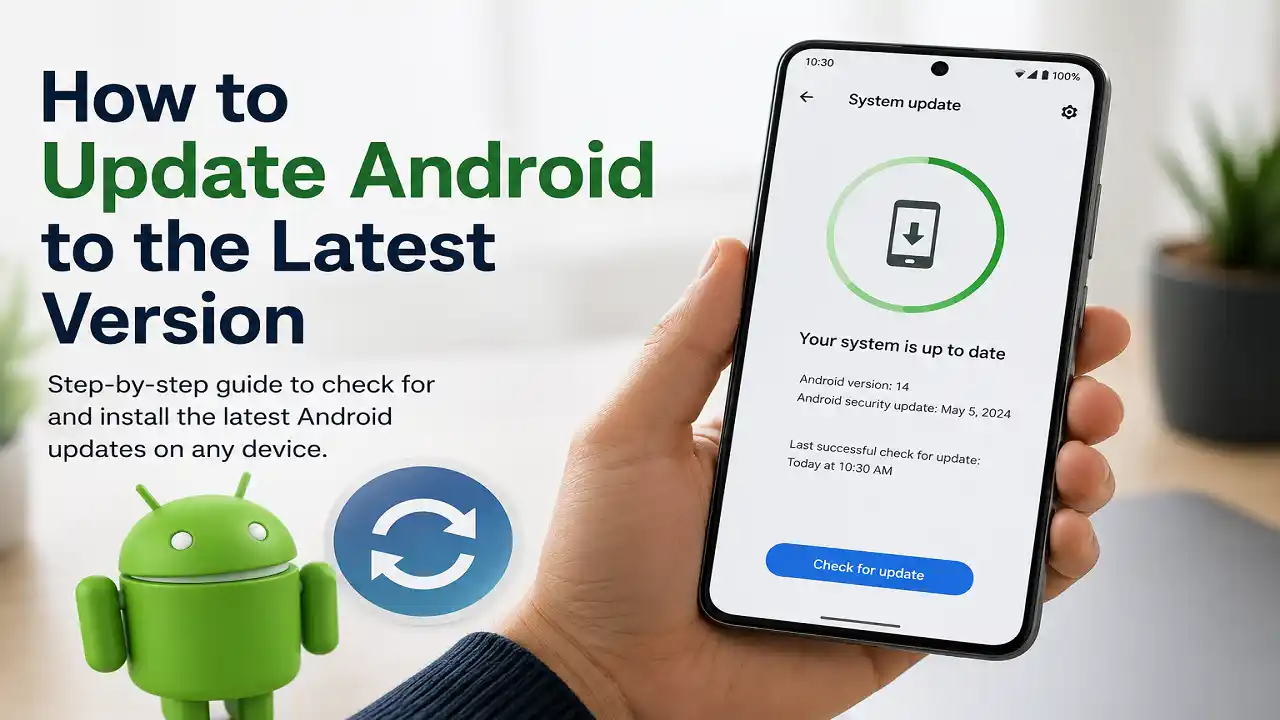

Keeping Android up to date gives your phone access to new features, security fixes, bug fixes, and system improvements. However, the latest Android version is not released to every phone at the same time. Availability depends on the device, manufacturer, and sometimes the mobile carrier.
If you want to update your Android phone, you can usually do it directly from the Settings app without connecting the phone to a computer.
Why Should You Update Your Android Phone?
Android updates are more than feature upgrades. They can include security patches that fix vulnerabilities, system improvements, and corrections for software problems.
Updating can also ensure that newer apps and services continue to work correctly with your device.
How to Check Your Current Android Version
Before looking for an update, check which version of Android your phone is currently running.
- Open Settings.
- Tap About phone or About tablet.
- Tap Android version.
Depending on your device, you can see the Android version, Android security update, Google Play system update, and build number on this screen.
Knowing your current version makes it easier to determine whether an available update is a major Android upgrade or a smaller security update.
How to Update Android to the Latest Version
The exact menu names vary between manufacturers, but the standard Android process is straightforward.
- Open Settings.
- Tap System.
- Select Software update.
- Check for available updates.
- If an update is available, follow the instructions on the screen.
- Allow the phone to restart and complete the installation.
On some devices, particularly Pixel phones, the option may be called Software updates rather than Software update.
If you receive an update notification, you can also open the notification and follow the update instructions instead of checking manually.
Connect to Wi-Fi Before Updating
Android updates can be large, so Google recommends connecting your phone to Wi-Fi before downloading one. It also recommends charging the device to at least 75% before starting the update.
If your manufacturer allows updates over mobile data, you can use cellular data, but Wi-Fi is generally the better option for a large system download.
Make Sure You Have Enough Storage
A system update needs enough free storage to download and install the new software.
If Android reports that there is not enough space, remove unnecessary videos, photos, downloads, or apps and try the update again. Google specifically lists insufficient storage as one of the common reasons an update may not install.
How to Update a Samsung Galaxy Phone
Samsung uses its own software interface, so the update menu is different from stock Android.
- Open Settings.
- Tap Software update.
- Tap Download and install.
- Wait while the phone checks for an update.
- If an update is available, follow the instructions to download and install it.
- Let the phone restart and finish the installation.
Samsung notes that some Galaxy devices may use System updates instead of Software update, and the exact menus can vary by model and software version.
Samsung also supports updating Galaxy devices through Smart Switch on a computer when that option is appropriate for the device.
How to Update a Google Pixel Phone
On a Pixel phone:
- Open Settings.
- Tap System.
- Tap Software updates or System update.
- Check the update status.
- Download and install the available update.
Pixel devices can install downloaded updates in the background, with the update becoming active after a restart.
How to Update Android on Other Phones
The update process is similar on most Android phones, but the name and location of the update menu can differ.
Common examples include:
- Xiaomi and Redmi: look for Settings → About phone → System update or the equivalent update option.
- OnePlus: look for the System updates section in Settings.
- Motorola: check Settings → System → Software updates.
- OPPO: look for the software update option under Settings.
- HONOR: use the system or software update section in Settings.
Because manufacturers change their interfaces between Android versions, the safest approach is to use the update section provided by your phone rather than following instructions for a different model.
How to Check for Android Security Updates
A major Android version update and a security update are not necessarily the same thing.
To check your security status:
- Open Settings.
- Tap About phone or About tablet.
- Tap Android version.
- Check Android security update.
You can also see the Google Play system update on supported devices.
Your phone can therefore be running an older major Android version while still receiving newer security updates, depending on the manufacturer’s support policy.
Why Is the Latest Android Version Not Available?
Finding no new update does not necessarily mean something is wrong with your phone.
Android updates are distributed according to the device, manufacturer, and mobile carrier. Older phones may also be unable to run newer Android versions.
Your Phone Is Not Supported
Manufacturers do not provide every Android version to every device. If your phone has reached the end of its software-support period, a newer Android version may never become available.
The Update Has Not Reached Your Device Yet
A manufacturer can release an update gradually rather than making it available to every supported phone at once.
Your model may therefore receive an update later than another device from the same manufacturer.
Your Carrier Controls the Rollout
Some carrier-branded phones receive software updates according to the carrier’s own testing and release schedule.
Your Phone Does Not Have Enough Storage
An update may fail to download or install if the device does not have enough available space. Free some storage and check for the update again.
What to Do If an Android Update Fails
If an update will not install, start with the basic checks:
Restart the Phone
Restarting can clear temporary system problems that interfere with the update process.
Check Your Internet Connection
Use a stable Wi-Fi connection and try the update again.
Free Up Storage
Delete unnecessary files and apps if Android reports insufficient storage.
Charge the Battery
Keep the phone sufficiently charged before attempting the installation. Google recommends at least 75% charge before updating.
Try the Update Again Later
If an update starts downloading but does not finish, Android may automatically try again over the following days.
If the problem continues, check your manufacturer’s support page for instructions specific to your model.
What Should You Do Before Updating Android?
Before installing a major Android update, it is sensible to prepare the phone:
- Back up important photos, documents, and other data.
- Connect the phone to Wi-Fi.
- Charge the battery.
- Make sure enough storage is available.
- Avoid interrupting the installation once it begins.
A normal over-the-air update should not erase your personal data, but having a current backup is still a good precaution before a major system upgrade.
How Long Does an Android Update Take?
The time depends on the size of the update, your internet connection, available storage, and the phone itself.
A small security patch may finish relatively quickly, while a major Android upgrade can take considerably longer. The phone may also restart during installation.
Do not turn off the phone or interrupt the installation while the update is being applied.
Read more: How to Find an iPhone When It Is Offline (2026 Guide)
Frequently Asked Questions
How Do I Update My Android Phone to the Latest Version?
Open Settings, go to System → Software update, check for available updates, and follow the on-screen instructions. The menu can be different on Samsung, Xiaomi, OnePlus, and other Android phones.
How Do I Know If My Android Phone Needs an Update?
Open Settings → About phone → Android version to check your Android version, security update, and Google Play system update. Then use the software update option to check whether a newer version is available.
Can I Update Android Manually?
Yes. You can manually check for an official update through your phone’s Settings app. Some manufacturers also provide computer-based update tools, such as Samsung Smart Switch.
Why Is My Android Phone Not Showing an Update?
The update may not have reached your model yet, your manufacturer or carrier may still be rolling it out, or your phone may no longer be supported. Android update schedules vary by device, manufacturer, and carrier.
Will Updating Android Delete My Data?
A normal system update is designed to preserve your personal data. Nevertheless, backing up important information before a major update is recommended.
Can an Old Android Phone Get the Latest Version?
Not necessarily. Older devices may not support newer Android versions. The availability of an update depends on the device and manufacturer’s support policy.
How Do I Update Android Without Wi-Fi?
Some phones allow system updates over mobile data, but Google recommends connecting to Wi-Fi because updates can be large. The available options depend on the device and manufacturer.
What Is the Difference Between an Android Update and a Security Update?
An Android version update can introduce new system features and changes, while a security update primarily addresses security vulnerabilities. Your phone can receive security updates without immediately receiving a new major Android version.
Final Thoughts
The simplest way to update Android is to use the phone’s built-in Software update option. Check your current Android version first, connect to Wi-Fi, make sure the battery and storage are sufficient, and then install the latest update officially offered for your device.
If no update appears, do not assume that your phone is malfunctioning. Android updates are released according to the device, manufacturer, and carrier, and older phones may not qualify for newer Android versions.