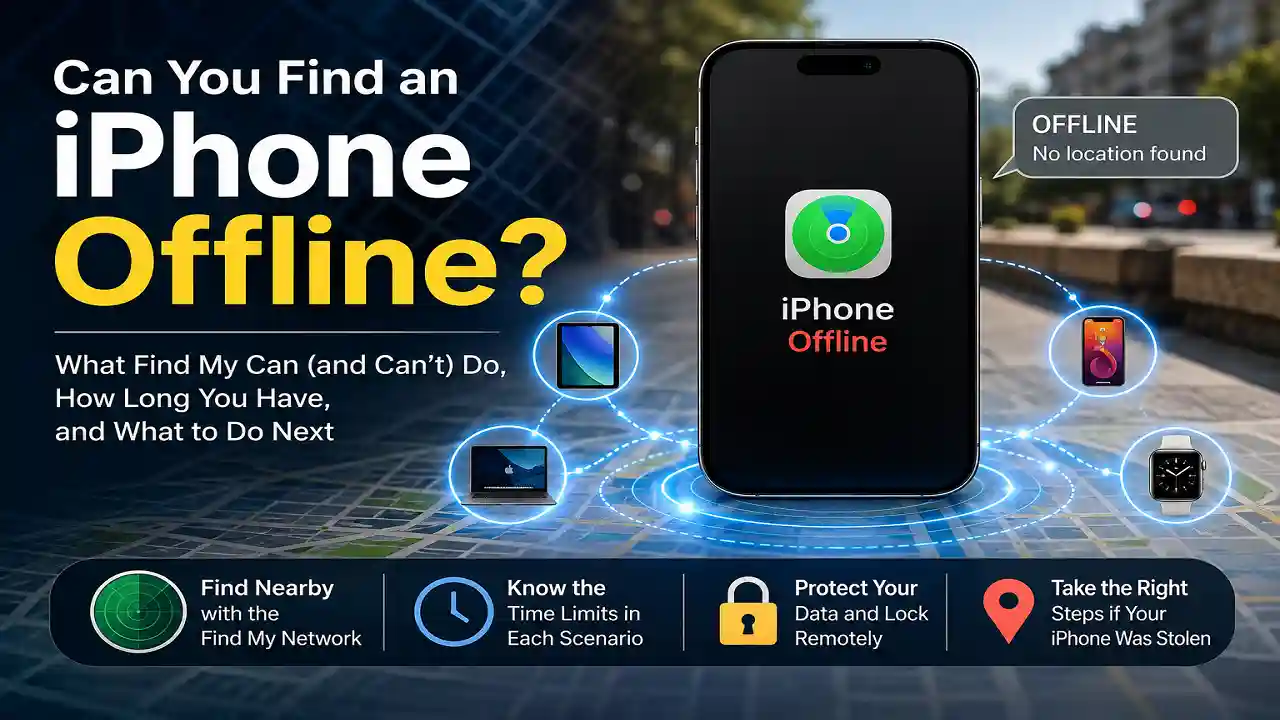

Knowing how to find an iPhone when it is offline matters most in the minutes after you open Find My and see a gray “Offline” label. The phone might be dead, switched off by a thief, or sitting somewhere with no signal, and each of those gives you a different window to act.
This guide decodes every Find My status, shows exactly how long you have in each scenario, and explains why the Find My app can show a location that iCloud.com and Help a Friend can’t. It also lays out the right order of steps if the phone was stolen.
Start with the short answer below. It takes a minute to read and tells you whether you’re still in the window.
Can You Find an iPhone That’s Offline? The Short Answer
Yes, in most cases, as long as Find My iPhone and the Find My network were turned on before the phone went missing. An offline iPhone can’t report its location over Wi-Fi or cellular, but nearby Apple devices can still detect it over Bluetooth. Apple calls this the Find My network: over a billion iPhones, iPads, and Macs that anonymously relay a lost device’s approximate location back to its owner, encrypted so no one else can see it.
Three things decide what you’ll actually see:
- Whether Find My was on before the loss. If it wasn’t, no Apple service can locate the phone, and there’s no way to switch it on remotely.
- How the phone went offline. A dead battery, a manual shutdown, and a simple loss of signal each have different time limits.
- Where you look. The Find My app on an Apple device signed in to your account shows more than iCloud.com in a web browser. This single detail trips up more people than anything else, and it gets its own section below.
What Find My Is Telling You: Offline, No Location Found, and Pending
Find My uses a handful of short labels, and each one points to a different next step. In the device list, an iPhone shown with a black screen is off or out of battery; a colorful Home Screen icon means it’s on.
| What you see | What it means | What to do |
|---|---|---|
| A location with a recent time stamp, even though the phone is offline | The Find My network or the phone’s last check-in reported a location | Get directions, and mark the phone as lost now |
| “Offline” with no current location | The phone is off, the battery is dead, or it has no known Wi-Fi or data connection | Check the Find My app on an Apple device, not just the website; turn on Notify When Found |
| “No location found” | More than seven days have passed since the phone last sent a location through the Find My network | Move to the stolen-phone steps below; keep Lost Mode on |
| “Not sharing location • Online” | The phone is connected but can’t send its location, often a Location Services problem | Commands still reach it: play a sound or mark it as lost |
| “Pending” or “Sound Pending” | A command you sent is queued; it runs the next time the phone connects to Wi-Fi or cellular | Leave it queued |
| Your iPhone isn’t in the list at all | Find My was never on, or the phone was signed out of or removed from your Apple Account | See “When Find My Says No Location Found” below |
How Long an Offline iPhone Stays Findable, Scenario by Scenario
The time limits are strict, so check the time stamp under your iPhone’s name before you do anything else.
| Scenario | How long it can be located | Where you can see it |
|---|---|---|
| Battery hit 0% and the phone entered power reserve mode | Up to 5 hours | Find My app |
| Someone turned the phone off manually | Up to 24 hours after shutdown | Find My app |
| Battery became critically low with Send Last Location on | One final location, uploaded just before it dies | iCloud.com (up to 24 hours) and the Find My app |
| Those windows have passed | Last known location kept for up to 7 days | Find My app only |
| More than 7 days without a new location | Nothing; you’ll see “No location found” | — |
| Phone is on but has no Wi-Fi or cellular (a dead zone, a basement) | As long as the battery lasts and Apple devices pass nearby | Find My app |
The 5-hour and 24-hour windows only apply to supported iPhones. Apple’s documentation lists iPhone 11 and later; the iPhone SE models aren’t supported. The fastest way to confirm your own phone is covered is the power-off check in the settings section near the end.
The windows describe how long the phone can be detected, not how often it will be. A dead iPhone in a busy airport terminal may report its location many times in five hours. The same phone in a parked car on a quiet road may not report at all, because no Apple device came close enough to hear it.
How to Find an iPhone When It Is Offline, Step by Step
Use the first method you have access to. They’re listed from most complete to least.
Best option: the Find My app on your iPad, Mac, or a second iPhone
- Open Find My on any Apple device signed in to the same Apple Account as the lost iPhone.
- Tap Devices, then select your iPhone. The map shows its current or last known location, and the line under its name shows when that location was recorded.
- Tap the More button, then Directions to open the location in Apple Maps.
- Turn on Notify When Found so you get an alert the moment the phone reports a new location.
If you want to see how far the phone is from you, turn on Precise Location for the Find My app on the device you’re using. An Apple Watch running watchOS 8 or later can also locate a lost device through its Find Devices app, which helps if your watch is the only other Apple device on you.
A family member’s iPhone in your Family Sharing group
If you’re in a Family Sharing group and share your location with the family, your devices appear in the family member’s Find My app. Open Find My, tap Devices, and scroll down: your iPhone is listed underneath their own devices. From there they can show you its location and mark it as lost on your behalf.
Any browser, including Android and Windows: iCloud.com/find
- Go to icloud.com/find and sign in with your Apple Account.
- You don’t need a verification code here, which matters when the lost iPhone is the device that normally receives your codes. If you’re asked for one, select the Find Devices button instead.
- Under All Devices, select your iPhone.
- If it says “Offline,” the last known location stays on screen for up to 24 hours. Select Notify me when found to get an email when it comes back online.
Sign out when you’re done if you’re on someone else’s computer.
A friend’s iPhone: what Help a Friend can and can’t show you
On a friend’s iPhone, open Find My, tap the Me tab, then Help a Friend. Safari opens iCloud.com, where you sign in with your own Apple Account. It’s quick, and it lets you mark your phone as lost from anywhere.
The catch is that Help a Friend is the website, not the app. It carries the same limits as iCloud.com, so it won’t show you the Find My network’s seven-day location history. If the friend’s phone shows “Offline” with no location and you own an iPad or Mac at home, check that device before you assume the phone can’t be found.
Why iCloud.com Shows Less Than the Find My App
Most guides treat the app and the website as interchangeable. For an offline iPhone, they aren’t.
When a stranger’s iPhone detects yours, it uploads an encrypted location report. According to Apple’s Platform Security guide, the Find My app on your own devices downloads those reports and decrypts them locally with private keys only your devices hold. iCloud.com doesn’t work that way: Apple says it shows a device’s location when the device is powered on and connected, plus a last known location for up to 24 hours. The Find My app keeps a last known location for up to 7 days.
In practice, if the website shows nothing, the phone may still be findable. Check the Find My app on any Apple device signed in to your account.
There’s one more reason the web map can come up empty. If Stolen Device Protection is on and your Apple Account password was changed at an unfamiliar location, Apple says your devices’ locations may not appear on iCloud.com/find for a period of time. That applies whether the thief tried the change or you did in a panic. You can still mark the phone as lost from there.
Mark It as Lost Before You Do Anything Else
Lost Mode is the one step that helps in every scenario, so do it as soon as you realize the phone is gone, even while you’re still searching. It locks the iPhone with your passcode, suspends the cards and passes you use with Apple Pay, and can display a message on the lock screen.
In the Find My app, select your iPhone under Devices, tap More, scroll to the Lost iPhone section, turn on Lost Mode, and tap Activate. On iCloud.com/find, select the phone and choose Mark as Lost. On an offline iPhone you’ll see “Pending”; the lock takes effect the moment the phone connects to Wi-Fi or cellular. If you use Stolen Device Protection, turning Lost Mode off also requires your Face ID or Touch ID, so knowing your passcode isn’t enough for a thief.
Whether to show your phone number depends on what happened:
- Left it somewhere (a restaurant, a rideshare, a gym): add a contact number and a short message. Honest finders use it.
- Stolen: leave contact details off. Apple warns that thieves use that information for social engineering, such as fake “your iPhone was found” texts designed to get your Apple Account password.
Apple will never contact you to say your iPhone has been found. Any message that does, and asks you to sign in, is a scam.
Finding the Phone Once You’re at the Location
A pin on the map gets you to the right place, not the exact spot. Find My network locations come from whichever device happened to pass by, so treat the pin as an estimate of the building or block.
Two tools people expect to use won’t help here. Play Sound doesn’t work while the phone is offline; Find My shows “Sound Pending” and plays it only after the phone reconnects. And unlike an AirTag, a lost iPhone has no Precision Finding arrow: Apple’s feature list for iPhone includes View Location and Play Sound, but not Find Nearby.
What works instead:
- Ask staff and check lost-and-found desks at the pinned location. Airports, stadiums, and transit systems in the US all run them.
- If you left it in an Uber or Lyft, use the app’s lost-item reporting to contact the driver.
- Call your number anyway. If the phone reconnects while you’re nearby, it will ring.
- Refresh Find My every few minutes. A pin that moves means the phone is in someone’s bag or car.
If the pin moves, or sits at an address you don’t recognize, don’t go there to confront anyone. Apple’s own guidance is to contact local law enforcement instead.
If You Think the Offline iPhone Was Stolen: The Right Order of Steps
Thieves usually switch a phone off or put it out of reach quickly, which is exactly why it shows as offline. The order below protects your data first and keeps your recovery options open.
- Mark it as lost at icloud.com/find or in the Find My app, without contact details.
- Screenshot the last location and time stamp. You’ll want it for the police report, and it may age out of view.
- File a police report. Officers may ask for the serial number, which you can find without the phone: sign in at account.apple.com and select the iPhone in your device list, or check the original box.
- Call your carrier (AT&T, Verizon, T-Mobile, or your provider) to suspend the line and file a claim if the phone is insured through them. Do this after step 1 so the lock is already queued before cellular service stops.
- Secure your accounts. On another trusted device, go to Settings > [your name] > Sign-In & Security and review the email addresses, phone numbers, and recovery methods on your account. If anything changed that you didn’t change, update it and reset your Apple Account password. Change the passwords for email and banking apps too.
- File an AppleCare+ with Theft and Loss claim if you have that coverage. Don’t remove the iPhone from Find My or your Apple Account until the claim is fully approved.
- Erase it remotely only when you’ve given up on recovery. Erasing can’t be undone, and on an offline phone it starts the next time the phone connects. With iOS 15 or later, you can still locate the phone after it’s erased.
The one thing never to do: don’t remove the iPhone from Find My, even after erasing it. That removes Activation Lock, which is the main thing stopping a thief from resetting and reselling your phone.
When Find My Says “No Location Found” or Your iPhone Isn’t Listed
“No location found” means more than seven days have passed since the phone last sent a location through the Find My network. The trail has gone cold, but the phone is still tied to your account. Keep Lost Mode and Notify When Found on: if anyone ever powers it up and connects it, you’ll get an alert and the lock will apply.
If your iPhone doesn’t appear in Find My at all, Find My was most likely never turned on, or the phone was signed out of your account. Apple is clear that no other Apple service can find, track, or flag the device in that case, and Apple Support can’t locate it for you. What you can still do is protect yourself: reset your Apple Account password, change your other important passwords, suspend the line with your carrier, and file a police report with the serial number and IMEI.
Be skeptical of anything promising more. Websites that claim to track a phone by its IMEI number are not something an individual can use, and advice about scanning for a phone’s heat signature won’t find it.
Settings That Keep Your iPhone Findable Offline Next Time
Five minutes now decides whether you’ll be reading the first half of this guide with a location on screen or without one. On iOS 27, go to Settings > [your name] > Find My > Find My iPhone and turn on all three switches:
- Find My iPhone: lets you locate, lock, and erase the phone.
- Find My network: lets other Apple devices detect it while it’s offline, powered off, or in power reserve mode.
- Send Last Location: uploads the phone’s location automatically when the battery becomes critically low.
Then check the supporting settings. Location Services must be on (Settings > Privacy & Security > Location Services), and so must Bluetooth. Turn on Stolen Device Protection under Settings > Face ID & Passcode. In the same menu, under Allow Access When Locked, turn off Control Center so no one can switch on Airplane Mode from your lock screen. Finally, note your serial number and IMEI from Settings > General > About and keep them somewhere other than the phone.
Confirm your iPhone supports finding after power off
Online model lists disagree about which iPhones qualify. Your phone can answer for itself. Open the power-off screen (press and hold the side button and either volume button) and look under the slider for the message iPhone Findable After Power Off. If you see it, your model and settings support the 24-hour and 5-hour windows. If you don’t, turn on Find My network and check again; if the message still doesn’t appear, your model doesn’t support it. Tap Cancel to close the screen without turning the phone off.
Read more: How to Find a Lost Android Phone (Even If It’s Off)
Frequently Asked Questions
Can I track my iPhone if it has been off for several days?
Only to its last known location, which the Find My app keeps for up to seven days. After that, Find My shows “No location found.” Notify When Found still alerts you if the phone ever reconnects.
Does Play Sound work when the iPhone is offline?
No. Find My shows “Sound Pending,” and the sound plays the next time the phone connects to Wi-Fi or cellular.
Can a thief turn off Find My without my password?
No. Turning off Find My, signing out of iCloud, or reactivating an erased iPhone requires your Apple Account password. With Stolen Device Protection on, some of these changes also require Face ID or Touch ID when the phone is away from familiar locations.
Is Help a Friend the same as signing in to Find My on my own device?
No. Help a Friend opens iCloud.com, which shows a last known location for up to 24 hours. The Find My app on your own Apple devices can show Find My network locations from up to seven days back.
Can Apple or my carrier locate my phone for me?
Not for you directly. Apple doesn’t locate lost devices on request, and US carriers don’t hand location data to customers. Your carrier can suspend the line, handle an insurance claim, and work with police, who can request records through legal channels.
Can I still find my iPhone after erasing it?
Yes, on iOS 15 or later, as long as you don’t remove the phone from Find My. Removing it turns off Activation Lock and ends your ability to track it.