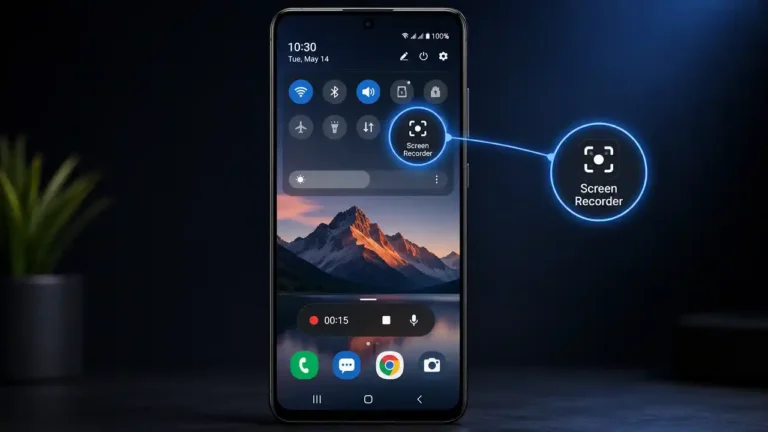

The iPhone has a built-in screen recorder that captures your display as a video and saves the result to the Photos app. You can also enable the microphone if you want to add voice narration.
This makes screen recording useful for creating tutorials, demonstrating an app problem, recording gameplay, or showing someone how to complete a task.
How to Record Your iPhone Screen
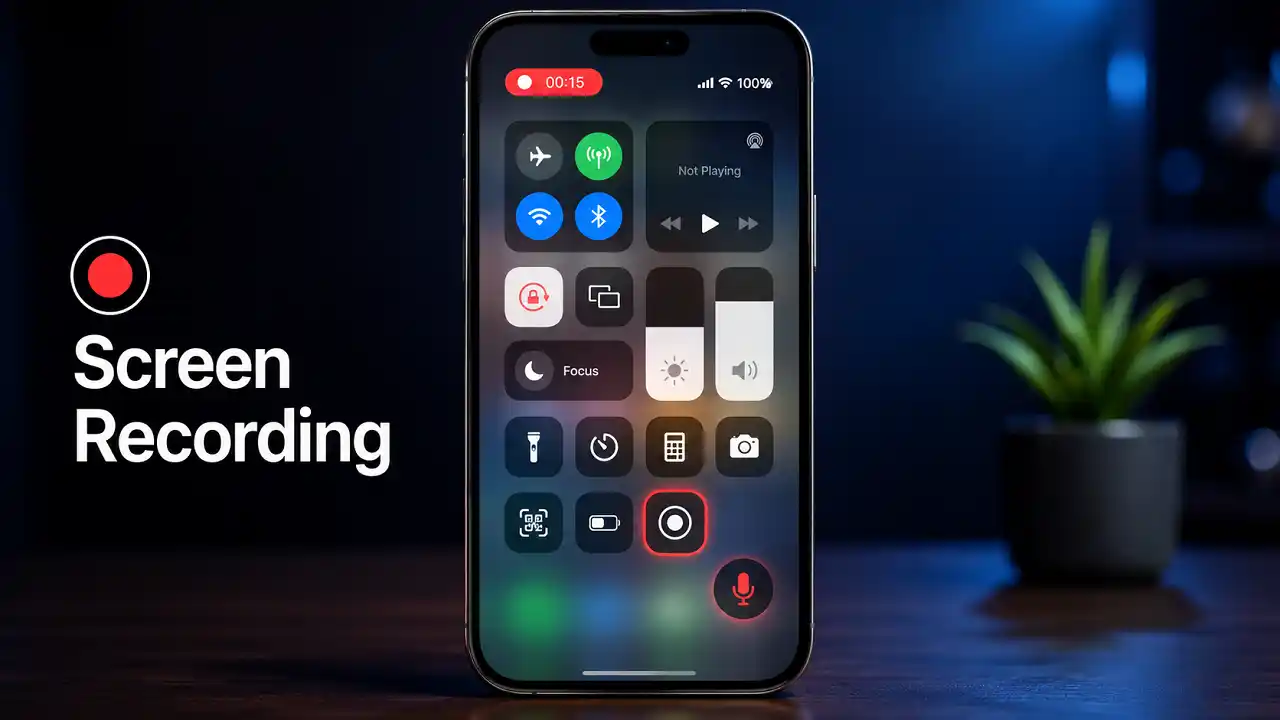
You can start a screen recording directly from Control Center without installing an app.
1. Add Screen Recording to Control Center
Open Control Center by swiping down from the top-right corner of the screen.
If you don’t see the Screen Recording control, use the Control Center customization options to add it. On current versions of iOS, you can add, remove, rearrange, and resize controls directly in Control Center.
On an iPhone with a Home button, such as an iPhone SE or iPhone 8 and earlier, swipe up from the bottom edge to open Control Center.
2. Start the Screen Recording
Open Control Center and tap the Screen Recording button.
A three-second countdown begins. Close Control Center and perform the actions you want to capture.
3. Record Your Voice With the Microphone
If you want to narrate the recording, touch and hold the Screen Recording button in Control Center.
Tap Microphone to turn it on, then tap the recording button and wait for the three-second countdown. Your microphone will be included in the recording.
This is particularly useful for app tutorials, troubleshooting demonstrations, and instructional videos.
4. Stop the Recording
When you’re finished, tap the recording indicator at the top of the screen and choose Stop.
You can also open Control Center and tap the red recording button to stop.
5. Find the Recording
The finished video is automatically saved to your Photos library. On current iOS versions, you can also find screen recordings under Photos > Collections > Media Types > Screen Recordings.
How to Record Your iPhone Screen With Sound
There are two different audio considerations when screen recording: your microphone and audio generated by the content you’re recording.
To add your own voice, press and hold the Screen Recording control and enable Microphone before starting.
Whether an app’s own audio or video content can be recorded depends on the app. Apple notes that some apps may restrict audio or video recording.
How to Find and Edit Your Screen Recordings
Screen recordings are stored in Photos like other videos.
Open Photos and select the recording from your library. For easier access, use the Screen Recordings category under Media Types.
You can then review the video, trim unwanted portions, and share the finished recording.
Before sharing, check the video for notifications, messages, passwords, account information, or other private content that may have appeared on screen.
Why Is Screen Recording Not Working on iPhone?
If screen recording does not work, check the following.
Screen Recording Is Missing
Open Control Center and use its customization controls to add Screen Recording. Current iOS versions allow controls to be added directly from Control Center.
Your Voice Is Missing
If the recording does not contain your narration, open Control Center, press and hold the Screen Recording button, and make sure Microphone is enabled before starting.
An App Does Not Record Properly
Some apps restrict the recording of their audio or video content. This is an application-level restriction and cannot necessarily be fixed through the iPhone’s screen-recording controls.
Screen Recording Won’t Start While Mirroring
Apple does not allow screen recording and screen mirroring to be used simultaneously. Stop screen mirroring before starting a recording.
Read more: How to Record Your Screen on Android: Step-by-Step Guide
Frequently Asked Questions About iPhone Screen Recording
Can I Record My iPhone Screen Without an App?
Yes. iPhone includes a built-in Screen Recording feature that can be accessed through Control Center.
How Do I Record My iPhone Screen With My Voice?
Press and hold the Screen Recording control in Control Center, enable Microphone, and start the recording.
Where Does iPhone Save Screen Recordings?
Screen recordings are automatically saved to the Photos library. You can also find them under Media Types > Screen Recordings.
Why Can’t I Find Screen Recording on My iPhone?
The Screen Recording control may not have been added to Control Center. Open Control Center’s customization interface and add it.
Can Every App Be Screen Recorded?
No. Apple states that some apps may prevent their audio or video content from being recorded.
Can I Screen Record While Using Screen Mirroring?
No. iPhone does not support screen recording and screen mirroring at the same time.
Final Thoughts
The built-in iPhone screen recorder handles most recording needs without additional software. Add Screen Recording to Control Center, tap it to start, and stop the recording when you’re finished. The video is then saved automatically in Photos.
For narrated tutorials or demonstrations, enable the microphone before starting. If a particular app refuses to record, the limitation may come from the app itself rather than your iPhone.