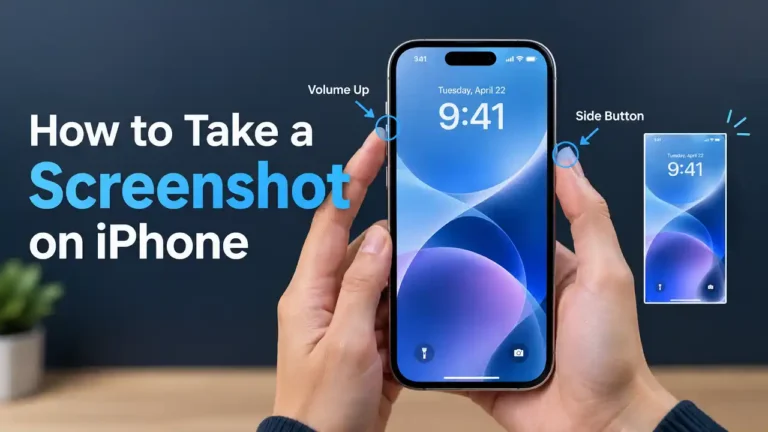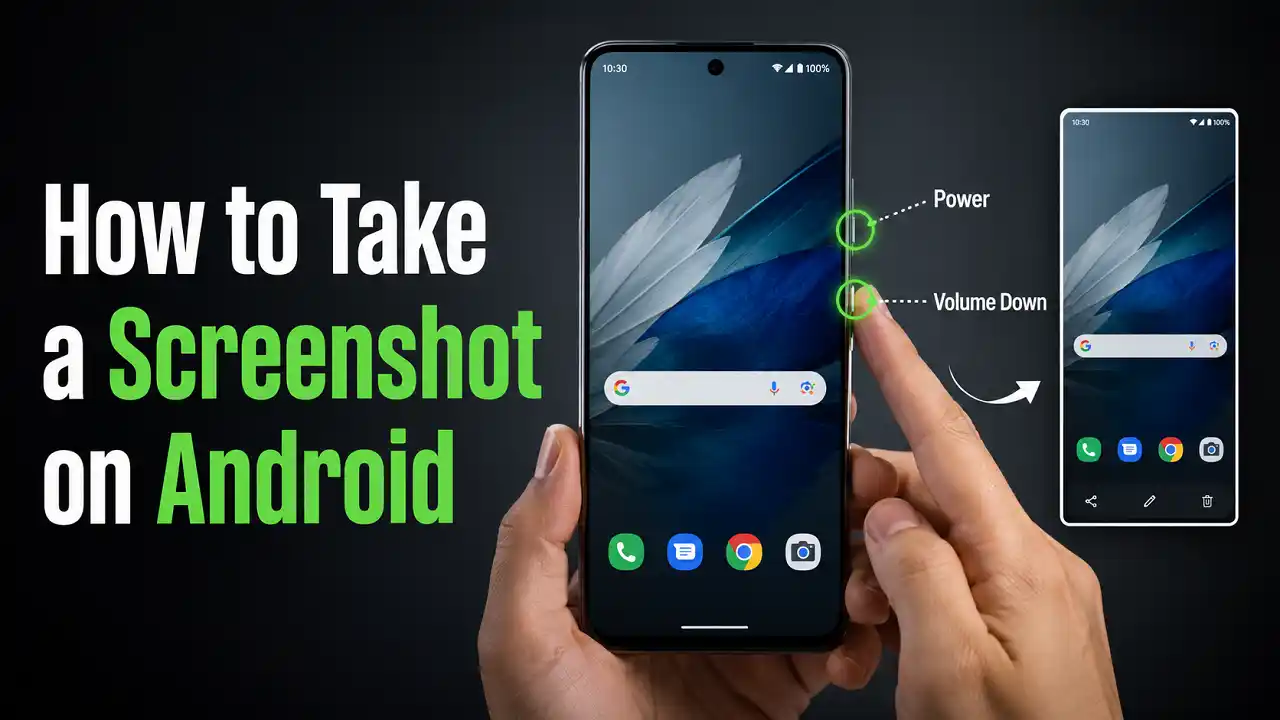

Taking a screenshot on Android is usually a matter of pressing two buttons at the same time. Most modern Android phones use the Power and Volume Down buttons, while some devices offer additional options such as gestures, voice commands, or on-screen controls.
The exact options can vary depending on your phone manufacturer, Android version, and device model. Here’s how to take, edit, and share screenshots on Android.
How to Take a Screenshot on Android Using the Buttons
The easiest and most widely supported method is to use the physical buttons on your phone.
Press the Power and Volume Down Buttons
- Open the screen you want to capture.
- Press the Power and Volume Down buttons at the same time.
- Release both buttons quickly.
- Your phone will capture the screen and usually display a preview or screenshot toolbar.
On most Android devices, you do not need to hold the buttons down for several seconds. A quick simultaneous press is enough.
Google lists Power + Volume Down as the standard screenshot method on Android devices. If it does not work on your phone, the manufacturer may provide another method. (Google Help)
What Happens After You Take a Screenshot?
After capturing the screen, Android may display a small preview with options to edit, share, or perform other actions.
You can immediately crop or annotate the image, or simply leave the preview and find the screenshot later in your photo or gallery app.
How to Take a Screenshot Without Using the Buttons
If your phone’s physical buttons are difficult to use, Android may provide alternative ways to capture the screen.
Depending on your device and navigation settings, you may be able to open the recent apps screen and select Screenshot.
On some Android devices, you can also use the Accessibility Menu, which includes a screenshot option. To enable it, open Settings > Accessibility > Accessibility Menu, then turn on the available shortcut. (Google Help)
The exact menu names can differ between manufacturers and Android versions.
How to Take a Scrolling Screenshot on Android
A normal screenshot captures only the content currently visible on your screen. If you need to capture an entire webpage, document, conversation, or another long screen, you can use a scrolling screenshot when your device supports the feature.
Use the “Capture More” Option
On devices running Android 12 or later, Google supports scrolling screenshots on most screens that allow scrolling.
- Open the webpage or other content you want to capture.
- Press Power + Volume Down at the same time.
- Tap Capture more when the screenshot controls appear.
- Adjust the crop area to select the content you want to include.
- Save the screenshot.
The option may not appear on every app or screen because the feature depends on whether the content can be scrolled. (Google Help)
How to Take a Screenshot on Samsung Galaxy
Samsung Galaxy phones support the standard button combination, along with several additional screenshot methods.
Use the Power and Volume Down Buttons
Open the content you want to capture, then press the Power/Side button and Volume Down button simultaneously.
Release the buttons after a moment. The screen will flash and a screenshot preview will appear. (Samsung)
Take a Screenshot With Palm Swipe
Many Samsung Galaxy phones support Palm swipe to capture, allowing you to take a screenshot without pressing the physical buttons.
To enable it:
- Open Settings.
- Tap Advanced features.
- Select Motions and gestures.
- Turn on Palm swipe to capture.
- Swipe the edge of your hand across the screen.
This feature is not available on every Galaxy model, and the menu can vary depending on the device and One UI version. (Samsung)
Capture a Long Screenshot on Samsung Galaxy
Samsung calls its long screenshot feature Scroll capture.
To use it:
- Open the webpage or other scrollable content.
- Take a normal screenshot.
- Tap the Scroll capture icon in the screenshot toolbar.
- Continue capturing until you have included the content you need.
- Tap outside the toolbar when finished.
The resulting image is saved as a single long screenshot in your Gallery. (Samsung)
How to Take a Screenshot on Google Pixel
Google Pixel phones use the same basic button combination as most Android devices.
Use the Power and Volume Down Buttons
Open the screen you want to capture and press Power + Volume Down simultaneously.
The screenshot is saved automatically, and a preview appears on the screen. (Google Help)
Take a Screenshot From the Recent Apps Screen
Pixel devices can also provide a screenshot option through the recent apps screen, depending on the navigation method and Android version.
Open the recent apps view, select the app you want to capture, and tap Screenshot when the option is available. (Google Help)
Use Google Assistant
You can also ask Google Assistant to take a screenshot by saying:
“Hey Google, take a screenshot.”
Google lists this as an alternative screenshot method on Pixel devices. (Google Help)
Where Are Screenshots Saved on Android?
Screenshots are normally saved automatically after you capture them.
On current Android devices using Google Photos, you can find them by opening:
Google Photos > Collections > On this device > Screenshots
On phones without Google Photos, screenshots may instead be available through the device’s Gallery app under a Screenshots album. (Google Help)
Samsung Galaxy devices save screenshots to the Gallery app. (Samsung)
How to Edit and Share an Android Screenshot
After taking a screenshot, you can usually edit or share it directly from the screenshot preview.
Crop and Mark Up a Screenshot
Tap the screenshot preview and choose Edit if available. You can then crop the image or use the available editing and markup tools.
This is useful when you want to remove unnecessary parts of the screen before sharing the image.
Share a Screenshot
Open the screenshot and tap Share. You can then select an app such as Messages, WhatsApp, email, or another service.
Delete an Unwanted Screenshot
If you no longer need a screenshot, open it in Google Photos or your phone’s Gallery app and use the Delete option.
Why Can’t I Take a Screenshot on My Android Phone?
If the usual button combination does not work, try these checks.
Make Sure You Press Both Buttons at the Same Time
Press Power + Volume Down simultaneously and release them quickly. Pressing one button noticeably earlier than the other can trigger a different action.
Try an Alternative Screenshot Method
Depending on your phone, you may be able to use an on-screen screenshot option, the recent apps screen, an accessibility feature, a gesture, or a voice command.
Samsung Galaxy devices, for example, may support Palm swipe and voice commands in addition to the physical buttons. (Samsung)
Check Whether the App Allows Screenshots
Some apps or specific screens can restrict screenshots for security or privacy reasons. If screenshots work normally elsewhere but not in a particular app, the restriction may come from the app rather than your phone.
Read more: How to Update Android to the Latest Version: Easy Guide
Frequently Asked Questions
What buttons do you press to screenshot on Android?
On most modern Android phones, press the Power and Volume Down buttons simultaneously, then release them quickly. (Google Help)
How do I screenshot on Android without buttons?
Depending on your phone, you may be able to use the recent apps screen, Accessibility Menu, a manufacturer-specific gesture, or a voice command.
How do I take a long screenshot on Android?
Take a normal screenshot and look for Capture more or a similar scrolling screenshot option. On Android 12 and later, Google supports scrolling screenshots on most scrollable screens. (Google Help)
Where do Android screenshots go?
On devices using Google Photos, screenshots can generally be found under Collections > On this device > Screenshots. Other phones may store them in the Gallery app’s Screenshots album. (Google Help)
Why won’t my Android phone take a screenshot?
First, make sure you press the Power and Volume Down buttons simultaneously. If that does not work, try another screenshot method supported by your phone. Also check whether the specific app or screen blocks screenshots.
Final Thoughts
For most Android phones, taking a screenshot is simple: press Power + Volume Down at the same time. If you need to capture an entire webpage or long conversation, look for Capture more or your phone’s equivalent scrolling screenshot feature.
Samsung Galaxy and other Android devices may also provide additional options such as gestures, voice commands, and accessibility controls. Because these features vary between manufacturers and models, the exact steps may differ slightly on your phone.