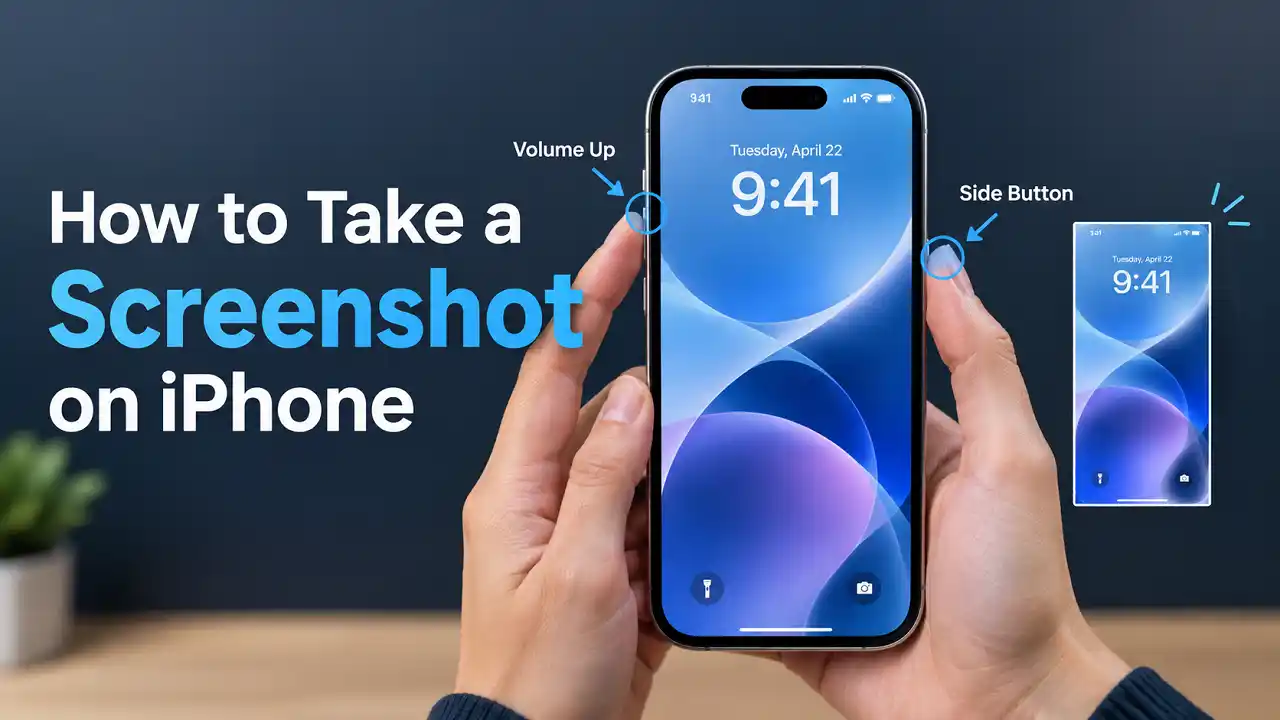

Taking a screenshot on an iPhone is straightforward, but the button combination depends on your iPhone model. On newer iPhones with Face ID, you use the Side button and Volume Up button. iPhone models with a Home button use the Side button and Home button instead.
You can also capture an entire webpage, take screenshots without using physical buttons, edit the image, and find all your screenshots in the Photos app.
How to Take a Screenshot on iPhone
The standard method takes only a quick press of two buttons. The exact combination depends on whether your iPhone has Face ID or a Home button.
Take a Screenshot on an iPhone With Face ID
For iPhone models without a physical Home button:
- Open the screen you want to capture.
- Quickly press the Side button and Volume Up button at the same time.
- Release both buttons immediately.
Your iPhone captures the screen and displays the screenshot interface. On current iOS versions, you can then edit, share, or save the screenshot.
The important part is to press and release both buttons quickly. Holding them for too long can trigger other functions instead of taking a screenshot.
Take a Screenshot on an iPhone With a Home Button
If your iPhone has a physical Home button and a Side button:
- Open the content you want to capture.
- Press the Side button and Home button simultaneously.
- Quickly release both buttons.
For older iPhone models with a Home button and a Top button, press the Top button and Home button together instead.
What Happens After You Take a Screenshot?
After capturing the screen, iOS gives you options to work with the screenshot immediately. You can crop it, annotate it with Markup, share it, or save it.
On current iOS versions, the screenshot interface can appear directly after capture. On older versions, a temporary thumbnail appears in the lower-left corner of the screen.
How to Take a Screenshot on iPhone Without Buttons
You do not have to rely on the physical buttons. iPhone includes accessibility features that can provide alternative screenshot methods.
Take a Screenshot With AssistiveTouch
AssistiveTouch adds an on-screen control that can perform actions normally handled with physical buttons.
To enable it:
- Open Settings.
- Tap Accessibility.
- Select Touch.
- Tap AssistiveTouch.
- Turn on AssistiveTouch.
You can then configure the AssistiveTouch menu or a custom action to capture a screenshot. Apple lists taking screenshots as one of the actions available through AssistiveTouch.
This is particularly useful if one of your physical buttons is difficult to press or does not work reliably.
Take a Screenshot With Back Tap
On supported iPhone models, Back Tap lets you trigger actions by double-tapping or triple-tapping the back of the device.
To set it up:
- Open Settings.
- Go to Accessibility > Touch > Back Tap.
- Choose Double Tap or Triple Tap.
- Select Screenshot.
- Double-tap or triple-tap the back of your iPhone to capture the screen.
Back Tap is available on iPhone 8 or later with iOS 14 or later.
Take a Screenshot Using Siri
You can also ask Siri to take a screenshot. This is useful when you cannot easily press the physical buttons or want to operate the phone hands-free.
Activate Siri and ask it to take a screenshot. Apple lists Siri as one of the alternative screenshot methods available on iPhone.
How to Take a Full-Page Screenshot on iPhone
A normal screenshot captures only the visible portion of the screen. If you need to save a longer webpage, such as an entire article in Safari, you can use the Full Page option when it is available.
Capture an Entire Webpage in Safari
- Open the webpage in Safari.
- Take a normal screenshot using the appropriate button combination.
- Tap the screenshot preview if needed.
- Select Full Page.
- Use the preview on the right to move through the captured content.
- Crop the capture if necessary.
- Choose how you want to save it.
Apple specifically supports full-page screenshots for content that extends beyond the iPhone display, including webpages in Safari.
How to Use the Full Page Option
The Full Page tab appears when the content supports an extended capture. You can review the entire captured page using the preview and crop it before saving.
This is different from simply taking several individual screenshots. Instead, iPhone combines the extended content into one capture.
Save a Full-Page Screenshot as a PDF
Full-page screenshots can be saved as PDF files rather than ordinary images.
After selecting Full Page:
- Tap the save option.
- Choose Save PDF to Files.
- Select a folder or storage location.
- Save the document.
This is useful when you need to keep an entire webpage as a document or send it as a PDF.
Save a Full-Page Screenshot to Photos
If you prefer an image instead of a PDF, use the available Save to Photos option when working with a full-page capture. Apple provides options to save supported screenshot captures to the Photos library.
How to Edit a Screenshot on iPhone
You can make basic changes immediately after capturing a screenshot.
Crop a Screenshot
Open the screenshot editing interface and drag the crop handles around the area you want to keep.
Cropping is useful when the original screenshot contains unnecessary parts of the screen, such as navigation controls or unrelated information.
Draw and Add Markup
Use Markup to draw on the screenshot or add annotations. This can be useful for highlighting a button, pointing to an error, or explaining something to another person.
Apple’s screenshot tools include Markup alongside cropping and sharing options.
Share a Screenshot
After taking or editing a screenshot, tap the Share option and select the app or contact you want to send it to.
You can share the image through messaging apps, email, AirDrop, or other compatible services.
Delete a Screenshot
If you do not want to keep the screenshot, use the delete or cancel option from the screenshot interface. You can also delete saved screenshots later from the Photos app.
Where Are Screenshots Saved on iPhone?
Screenshots are automatically saved to your photo library unless you choose another available save option.
Find Screenshots in the Photos App
Open Photos, then:
Collections → Media Types → Screenshots
This dedicated category makes it easier to find screenshots without searching through your entire photo library.
Save Screenshots to Files
Full-page screenshots can be saved as PDFs in the Files app. This is particularly useful for webpages, documents, receipts, or other long-form content that you want to keep separately from your photos.
How to Take a Screenshot on Different iPhone Models
The main difference between iPhone models is the location and combination of buttons used for the screenshot.
iPhone Models With Face ID
Use:
Side button + Volume Up
Press both buttons quickly and release them.
iPhone Models With a Home Button
For models with a Side button and Home button, use:
Side button + Home button
For older models with a Top button, use:
Top button + Home button
Apple’s current support documentation distinguishes these combinations based on the physical button layout of the iPhone.
Why Is My iPhone Not Taking a Screenshot?
If the normal shortcut does not work, check the following.
Make Sure You Press the Buttons at the Same Time
The two buttons need to be pressed and released quickly. If one button is pressed too early or held down, the iPhone may perform a different action.
Try pressing both buttons together and immediately releasing them.
Check Whether the Buttons Are Working
If one of the required buttons is damaged or difficult to press, use an alternative method such as AssistiveTouch or Back Tap.
AssistiveTouch can replace several physical button functions and includes a screenshot action.
Try AssistiveTouch or Back Tap
If the physical buttons are unreliable, configure AssistiveTouch or Back Tap as an alternative.
For Back Tap, go to Settings > Accessibility > Touch > Back Tap, then assign Screenshot to a double or triple tap.
Check Your iPhone’s Software
If screenshots suddenly stop working or behave differently after an iOS update, check whether your iPhone is running the latest available software for your device.
Read more: How to Take a Screenshot on Android: Easy Methods
Frequently Asked Questions About iPhone Screenshots
What Buttons Do I Press to Screenshot on iPhone?
On an iPhone with Face ID, press the Side button and Volume Up button simultaneously. On an iPhone with a Home button, press the Side button and Home button together. Older models with a Top button use the Top button and Home button.
How Do I Screenshot on iPhone Without Buttons?
You can use AssistiveTouch, Back Tap, or Siri instead of pressing the physical buttons.
How Do I Take a Long Screenshot on iPhone?
Take a normal screenshot, then select Full Page when the option is available. This can capture content extending beyond the screen, such as a webpage in Safari.
Where Are Screenshots Saved on iPhone?
Screenshots are saved to the Photos app. To find them, open Photos > Collections > Media Types > Screenshots.
Can I Save a Full-Page Screenshot as a PDF?
Yes. When using the Full Page screenshot option, you can choose Save PDF to Files and select where to store the document.
Why Won’t My iPhone Take a Screenshot?
First, make sure you are using the correct button combination for your iPhone and pressing both buttons at the same time. If the buttons are not working, try AssistiveTouch or Back Tap as an alternative.
Final Thoughts
The fastest way to take a screenshot on most modern iPhones is to press the Side button and Volume Up button together. iPhones with a Home button use the Side and Home buttons instead.
For longer content, the Full Page option can capture an entire supported webpage, while AssistiveTouch, Back Tap, and Siri provide alternatives when you do not want to use the physical buttons.