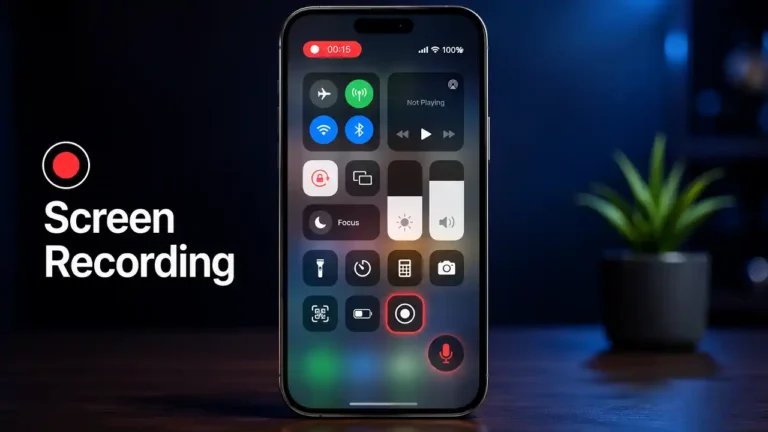

Recording your Android screen is useful for creating tutorials, demonstrating a problem, saving gameplay, or showing someone how to use an app. On modern Android devices, screen recording is usually built into the system, so you can start recording without installing a third-party application.
The exact options can vary depending on the Android version and phone manufacturer, but the basic process is similar across supported devices. Google’s Android instructions use the Quick Settings panel to start and stop a screen recording, while manufacturers such as Samsung provide additional recording controls.
How to Record Your Screen on Android Without an App
If your phone includes the built-in Screen Recorder feature, you can record the display directly from Quick Settings.
Open the Quick Settings Panel
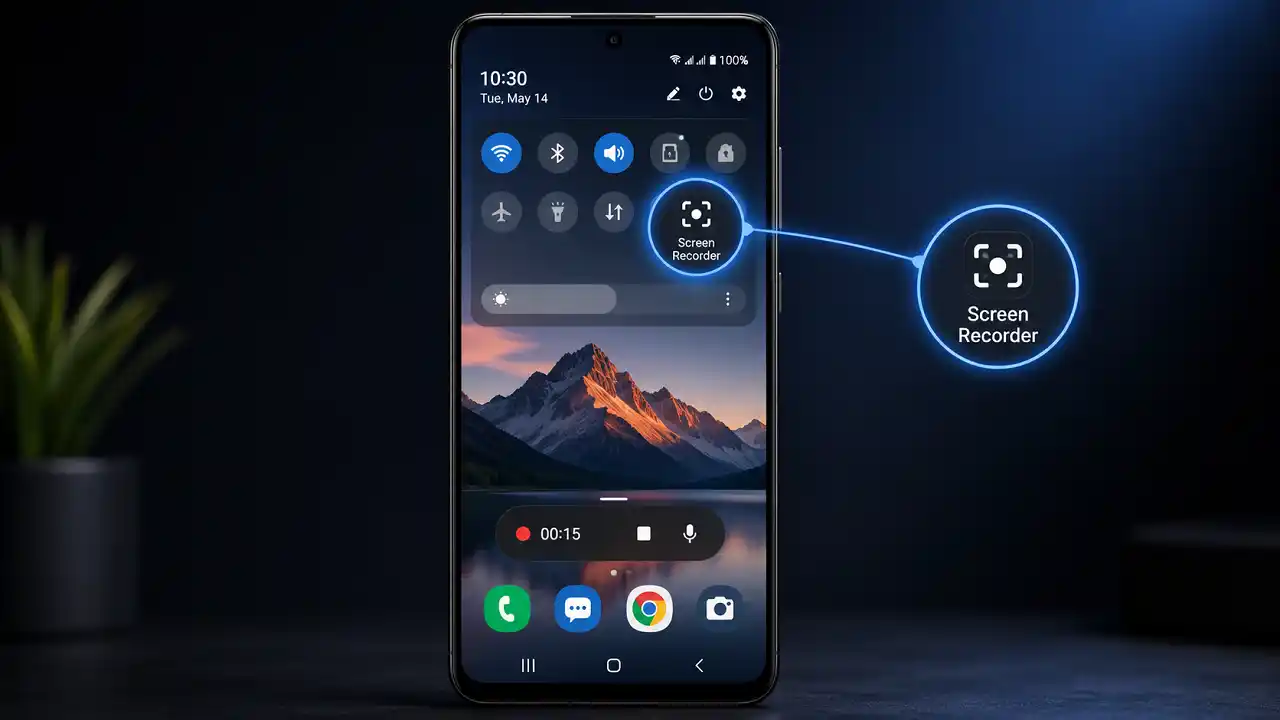
Open the screen you want to capture, then swipe down twice from the top of the display to open the full Quick Settings panel.
Look for Screen record or Screen Recorder. On some phones, you may need to swipe horizontally through the available buttons to find it.
Find the Screen Record Option
Tap Screen record to open the recording options.
Depending on your device, you may be able to choose whether to record audio and whether to show touches on the screen. Some Android devices also let you select whether to record the entire screen or a specific app.
If the button is missing, tap Edit in Quick Settings and look for the Screen Recorder tile. You can then add it to the available Quick Settings buttons.
Choose Audio and Recording Settings
Before starting, select the appropriate audio option if your phone provides one.
For example, you may be able to record:
- No audio
- Device or media audio
- Microphone audio
- Device audio and microphone, depending on the phone
If you are making a tutorial, microphone recording can be useful for explaining what you are doing while the screen is being captured.
Start the Screen Recording
Tap Start or Start recording. Most devices display a short countdown before recording begins.
Once recording starts, everything supported by the screen recorder will be captured as a video.
Stop and Save the Recording
When you have finished, swipe down from the top of the screen and tap the screen-recording notification or use the Stop button provided by your phone.
The recording is then saved automatically. On Android devices using Google Photos, recordings can be found under Photos > Collections > On this device > Movies.
How to Screen Record on Samsung Galaxy
Samsung Galaxy phones with a supported version of One UI include a built-in Screen Recorder. This allows you to record the display without installing a separate application.
Open the Quick Panel
Swipe down from the top of the screen to open the Quick Panel.
Depending on the One UI version, the layout and location of Quick Settings buttons can differ. On newer Galaxy devices, Samsung has changed the organization of the Quick Panel, so you may need to open the relevant panel or swipe through the available controls.
Tap Screen Recorder
Select Screen recorder.
Samsung then provides recording options such as sound and, on supported devices, whether to show touch interactions or use additional recording features. Tap Start recording when you are ready.
A three-second countdown normally appears before the recording begins.
Pause or Stop the Recording
While recording, Samsung displays controls that allow you to pause or stop the capture.
When finished, tap the Stop button. The recorded video is automatically saved to the Gallery.
Find the Recording in the Gallery
Open Gallery and look for the Screen recordings album.
On supported Samsung devices, the default storage location is:
Internal storage > DCIM > Screen recordings
Samsung notes that menu names and layouts can vary depending on the device model and software version.
How to Record Your Android Screen With Sound
Screen recording does not necessarily mean that every sound produced by the phone will be captured. The available audio options depend on the Android version and device manufacturer.
Record Internal Device Audio
If your phone provides a media or device-audio option, select it before starting the recording.
This is useful when you want the recorded video to include sounds produced by an app or game.
Record Audio From the Microphone
Choose the microphone option when you need to provide spoken instructions while recording.
For example, this is useful when creating a tutorial because you can explain each step without recording your voice separately.
Record Both Device Audio and Microphone
Some manufacturers provide an option to combine device audio with microphone input. Samsung’s current Screen Recorder implementation offers different sound settings depending on the supported device and software version.
How to Show Touches While Recording Your Screen
Showing touches can make a tutorial easier to follow because viewers can see exactly where you tap.
Before starting the recording, check the Screen Recorder settings for an option such as Show taps or Show touch interactions.
On Samsung Galaxy devices, this option can be configured through the Screen Recorder controls or settings on supported models.
When Showing Touches Is Useful
Enable touch indicators when recording:
- App tutorials
- Android troubleshooting guides
- Gaming demonstrations
- Step-by-step instructions
- Educational videos
For a simple demonstration where the taps are self-explanatory, leaving the option disabled can produce a cleaner recording.
How to Add the Screen Recorder to Quick Settings
If you cannot find Screen Recorder, it may simply not be included in your current Quick Settings layout.
What to Do If Screen Recorder Is Missing
Open Quick Settings and select Edit. Look through the available buttons for Screen record.
On supported Android devices, Google recommends adding the Screen record tile to Quick Settings if it is not already present.
Add Screen Recorder to the Quick Settings Panel
Press and hold the Screen Recorder button and drag it into the active Quick Settings area.
On Samsung Galaxy devices, the exact editing process depends on the One UI version. Samsung provides an Edit buttons option for adding Screen Recorder when it is not visible in the Quick Panel.
Where Are Screen Recordings Saved on Android?
The location depends on the phone and the gallery application it uses.
Find Screen Recordings in Google Photos
On supported Android devices, open Google Photos, then go to:
Collections > On this device > Movies
This is where Google directs users to find screen recordings saved by the device.
Find Screen Recordings in Samsung Gallery
On Samsung Galaxy, open Gallery and look for the Screen recordings folder or album.
Samsung also identifies Internal storage > DCIM > Screen recordings as the default storage location on supported devices.
Change the Screen Recording Save Location
Some Samsung Galaxy devices allow you to change where screen recordings are stored through the Screen Recorder settings.
Go to:
Settings > Advanced features > Screenshots and screen recordings
The available settings and menu names can vary by model and software version.
How to Record Your Screen on Android Without the Built-in Recorder
Not every Android phone provides the same screen-recording functionality. Google also notes that the available features can depend on the device.
When You Need a Screen Recording App
A third-party recorder may be useful if your phone does not have a built-in recorder or if you need features that the system recorder does not provide.
For example, you may want additional editing tools, overlays, advanced recording controls, or other specialized features.
However, installing an additional app is unnecessary when the phone already provides the recording functions you need.
What to Check Before Installing a Screen Recorder
Before installing a third-party recorder, check its permissions and the features it requests.
A basic screen recorder should not require unnecessary access to personal information. Also check whether the app adds watermarks, limits recording quality, or restricts recording length.
Why Is Screen Recording Not Working on Android?
Several factors can prevent a screen recording from working as expected.
Screen Recorder Is Missing
First, check whether the Screen Recorder tile is hidden in Quick Settings.
If the device does not support built-in screen recording, the feature may not appear at all. Samsung specifically notes that Screen Recorder is not supported on every Galaxy model.
Screen Recording Has No Sound
If the video has no audio, check the recording’s sound setting before starting.
Make sure the correct source—such as microphone or media audio—is selected and that the relevant permission or system setting has not been disabled.
Some Apps or Videos Cannot Be Recorded
Screen recording is not guaranteed to work with every application or type of content.
Copyright protection can prevent certain videos, images, apps, or websites from being captured. Samsung explicitly notes this limitation for supported Galaxy devices.
Recording Stops Unexpectedly
If recording stops unexpectedly, check available storage space, device temperature, and whether the application being recorded imposes restrictions.
On older Samsung configurations, there were also recording limits; Samsung states that Android 10 with One UI 2.5 could limit recordings to one hour or 4 GB, while Android 11 with One UI 3.0 or later removed those limits on supported devices.
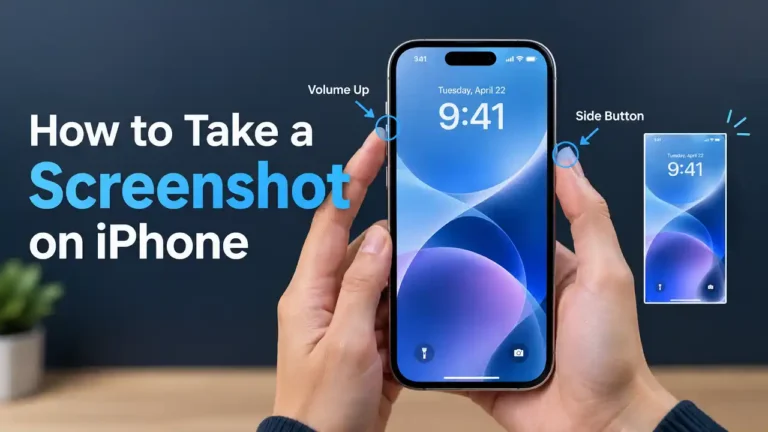
Read more: How to Take a Screenshot on iPhone: All Methods
Frequently Asked Questions About Android Screen Recording
Can I Record My Android Screen Without an App?
Yes. Many modern Android phones include a built-in Screen Recorder that can be accessed through Quick Settings. Availability and features vary by device and Android version.
Does Android Screen Recording Record Audio?
It can, depending on the device. Supported phones may let you choose between microphone audio, device or media audio, or no audio before recording begins.
Where Does Android Save Screen Recordings?
The location varies by manufacturer. On supported Android devices using Google Photos, recordings can be found under Collections > On this device > Movies. Samsung Galaxy devices generally use a Screen recordings folder in Gallery.
Can I Record a Video Call on Android?
Screen recording availability during calls depends on the device, operating system, app, and applicable restrictions. Some applications may prevent recording for privacy or copyright reasons.
Can I Record My Front Camera While Recording the Screen?
Some Samsung Galaxy devices support a front-camera overlay while recording the screen. The feature and available controls depend on the model and software version.
Final Thoughts on Recording Your Android Screen
For most supported Android phones, the easiest way to record the display is to use the built-in Screen Recorder from Quick Settings. You can typically choose the audio source, start the recording, and then access the finished video from your phone’s gallery or photos application.
If you use a Samsung Galaxy, the built-in recorder provides additional controls for audio, touch indicators, recording quality, and other options on supported models. Because Android interfaces differ between manufacturers and software versions, the exact menu names may not always be identical.