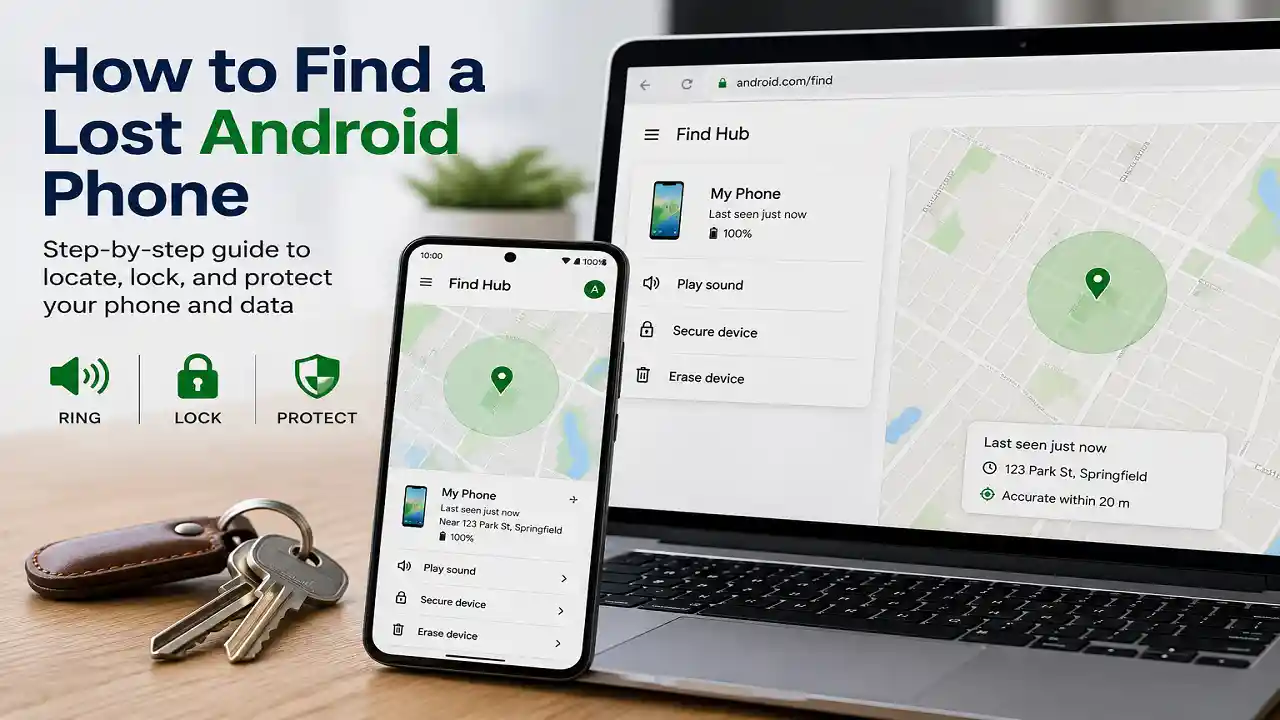

Your phone isn’t where it should be. Here’s how to find a lost Android phone in the order that matters: ring it if it’s close, lock it if it isn’t, and protect your accounts if it was taken.
Google’s Find Hub, the new name for Find My Device, does most of the work from any browser, including one on an iPhone. This guide also covers what most tutorials skip: how to lock the phone when it’s also your 2-step verification device, what “location unavailable” means, how to read the map’s accuracy circle, and what you can still see after the battery dies.
Start with the table below and jump to your situation.
Start Here: Match Your Situation to the Right First Move
| Your situation | Do this first | Then |
|---|---|---|
| Probably at home, in the car, or close by | Play sound in Find Hub | Use Find nearby once you’re within about 10 meters |
| Left somewhere public (restaurant, rideshare, gym) | Mark as lost with a callback number | Call the business; check the map again in an hour |
| Grabbed from you, or you suspect theft | Lock it with Remote Lock (android.com/lock) or Mark as lost | Police, carrier, bank. Don’t go to the location yourself |
| Map shows no location, or the phone is off or dead | Write down the last known location and time | Read the offline section below |
One rule applies to every row: don’t factory reset in the first hour. Erasing is the only step you can’t undo, and it ends your ability to track the phone.
How to Find a Lost Android Phone With Find Hub
Find Hub turns on automatically when a Google Account is added to an Android phone, so most people are already set up without knowing it. You don’t install anything on the lost phone. You only need another screen and your Google password.
From a Computer, Tablet, or iPhone
- Open any browser and go to android.com/find.
- Sign in with the Google Account that’s on the lost phone. This is where many searches fail: if you use several Gmail addresses, only the account on the phone will show it. Google sends the phone’s recent location to the first account that was set up on it, and if the phone has several user profiles, you need the account on the main profile.
- Select the phone from the device list. The phone itself gets a notification that it’s being located.
- If prompted, enter the phone’s lock screen PIN (Android 9 and up). Phones without a PIN, or on Android 8 and older, ask for your Google password instead.
- Check the map, then choose an action.
From a Friend’s Android Phone
Open the Find Hub app on their phone and tap Sign in as guest, then sign in with your own account. Guest mode lets you run the search without adding your account to their phone. It’s the fastest option when you’re out and the only device nearby belongs to someone else.
From Your Smartwatch
A Wear OS watch with the Find Hub app installed can locate and ring your phone, as long as it’s signed in to the same Google Account. On a Galaxy Watch, open Samsung Find from the app list and tap the ring icon; the watch needs a Bluetooth connection to the phone or its own Wi-Fi or LTE connection.
How to Read the Find Hub Map Without Chasing the Wrong Spot
The pin tells you where Google thinks the phone is. The shaded circle around it tells you how sure Google is, and that circle deserves more attention than the pin.
Location comes from three sources, and their accuracy is very different. GPS is good to about 20 meters outdoors but degrades inside buildings and underground. Nearby Wi-Fi networks narrow things down in dense areas. Cell towers alone can be off by a few thousand meters. So a tight circle on a single building usually means a GPS or Wi-Fi fix, while a circle spanning several blocks means the phone is reporting from cell towers, and knocking on doors inside it is guesswork.
Check the timestamp next to the location too. If Find Hub can’t reach the phone, it shows the last known location instead, which could be hours old. A phone that was last seen at a coffee shop at 2 p.m. and is still there at 6 p.m. is probably sitting in a lost-and-found drawer or out of battery.
When you’re close, two tools help. Get directions opens a route to the pin. Find nearby works once you’re within about 10 meters and shows a shape that fills in as you get closer, which is far more useful in a parking lot than staring at a map.
Ring, Lock, or Erase: Which Button to Press and When
Play Sound
Play sound rings the phone at full volume for five minutes, even when it’s set to silent or vibrate. Use it when the map puts the phone at home, at work, or in your car. It’s also the first thing to try if the location looks wrong but you have a hunch it’s nearby; a phone wedged between car seats often reports a fuzzy location.
Mark as Lost
Mark as lost locks the phone with your existing PIN, pattern, or password and puts a message and contact number on the lock screen. According to Google’s Android site, securing the phone this way also signs your Google Account out of it and can remove your cards from Google Wallet. On Android 17 phones with fingerprint or face recognition, a marked-lost phone also requires biometrics and hides notifications, widgets, and quick-access controls from the lock screen.
Use a contact number that isn’t the lost phone’s: a partner’s, a relative’s, or your work line. Keep the message short and specific, such as “Lost phone. Reward for return. Call 555-0123.” Most people who find a phone want to return it; give them an easy way.
If the phone is offline when you press the button, the command waits and runs as soon as the phone reconnects.
Factory Reset, and Why It Should Wait
Factory reset permanently deletes everything on the phone, though Google warns it may not erase an SD card. Once the reset runs, the phone disappears from Find Hub for good, so you lose the map.
There’s an upside that most guides leave out. After a remote erase, the phone asks for your Google Account password before anyone can set it up again. A reset phone is still locked to you, which makes it much less valuable to a thief.
Erase when three things are true: the phone is locked or marked lost, you’ve filed your police and carrier reports (you’ll want the IMEI first; see the stolen-phone section), and you’ve accepted you won’t get it back. Until then, a locked phone is already hard to get into, and the location may still lead you to it.
When Your Lost Phone Is Also Your 2-Step Verification Device
Here’s a trap that catches a lot of people. You sign in to Find Hub on a borrowed laptop, and Google asks you to confirm the sign-in on your phone, the phone you’re looking for.
Google says you can still locate the phone at android.com/find, or in the Find Hub app’s guest mode, with your email and password. Locking or erasing it remotely is where 2-step verification comes in, and if the lost phone is your second factor, you need a backup code or a physical security key. Without either, Google’s advice is to contact your carrier for a replacement SIM so verification texts reach you again.
The faster route is Remote Lock, which needs no Google sign-in at all:
- Go to android.com/lock in any browser.
- Enter your phone number.
- Complete the CAPTCHA, plus your security question if you set one.
- Request the lock. The screen locks shortly after.
Remote Lock only works if it was turned on beforehand, and it has a checklist of its own: a screen lock, an active SIM, a verified phone number, Find Hub turned on, and an internet connection on the phone. If the phone is offline when you send the request, it locks the moment it reconnects. You can use it twice in 24 hours, and afterward only your own screen lock opens the phone. The broader theft protection features it belongs to need Android 10 or newer and aren’t available on tablets or Android Go phones.
Samsung accounts have a similar problem. Android Authority notes that Samsung’s 2-step verification often defaults to prompts on the same phone you’re trying to find. If Samsung sign-in stalls, fall back to Google’s Find Hub.
Samsung Galaxy Phones: Use Samsung Find Alongside Find Hub
Galaxy phones work with Google’s Find Hub like any other Android phone, and they also have Samsung’s own service. Sign in with your Samsung account at samsungfind.samsung.com or smartthingsfind.samsung.com; both show the same devices.
Samsung’s service needs the phone to be powered on (otherwise it shows only the last known location), connected to a network, and signed in to a Samsung account. The controls live under Settings > Security and privacy > Lost device protection, where Allow this phone to be found, Send last location, and Offline finding should all be on. Samsung turns remote controls on by default when you add a Samsung account.
Two Samsung features are worth using even if Find Hub already shows the phone. Track location sends a fresh location every 15 minutes, which matters when a phone is moving in a rideshare, bus, or train. Extend battery life remotely switches on Maximum power saving mode, which Samsung says can keep the phone alive for days and buys you more time to find it.
| Feature | Google Find Hub | Samsung Find |
|---|---|---|
| Account | Samsung | |
| Ring duration | 5 minutes | 1 minute |
| Remote lock | Uses your existing screen lock, plus a message | You set a new PIN, plus contact and message |
| Moving phone | Refresh the map manually | Automatic updates every 15 minutes |
| Remote battery saver | No | Yes |
| Erase | Yes; may not wipe an SD card | Yes; also erases the SD card |
Phone Off, Dead, or Offline: What You Can Still See
A phone that’s switched off can’t report a live location, with one narrow exception covered below. Offline doesn’t mean invisible, though.
Last known location. By default, Android stores encrypted recent locations with Google, so Find Hub can show where an offline phone was when it last had a connection. On Galaxy phones, Send last location does the same job on Samsung’s side when the battery runs low.
The Find Hub network. If the phone is on but has no data (no signal, SIM pulled, Wi-Fi off), nearby Android devices can detect it over Bluetooth and report its location to you, encrypted end to end. This only works if your phone has a PIN, pattern, or password, and it depends on the setting at Settings > Google > All Services > Find Hub > Find your offline devices:
- Off: No stored locations, no network help.
- Without network: Stored locations only.
- With network in busy places only: The network helps in places like airports and busy sidewalks.
- With network everywhere: The network helps in busy and remote areas.
Google adds a safeguard called aggregation that can make detection harder in remote areas, so if you live somewhere rural, “With network everywhere” is the better choice. Galaxy phones also have Samsung’s Offline finding, where nearby Galaxy devices act as “Find Nodes”; it needs the phone powered on.
The powered-off exception. On supported phones, such as the Pixel 8 series and later, the Find Hub network can still locate the phone for several hours after it shuts down or the battery dies. That only works if offline finding was set to one of the two “with network” options and Bluetooth and Location were on when the phone went dark.
If all you have is a last known location, write down the address and time, check the map every few hours, and share both with the police if you file a report. A phone that someone charges and turns back on will start reporting again.
One tip you’ll see in older guides no longer works: checking Google Maps Timeline on the web. Google shut down web Timeline in late 2024 and moved it onto each phone, so a lost phone’s Timeline is stuck on the lost phone.
“Location Unavailable” or Missing From the List: How to Fix It
When Find Hub can’t place the phone, Google lists four causes: the phone has no power or is turned off; it has no cellular or Wi-Fi connection (weak signal, or the SIM was removed); it’s damaged; or it’s in airplane mode with Wi-Fi off. None of those are fixable from where you are, so press Mark as lost anyway. The command runs if the phone comes back online.
If the phone doesn’t appear in the device list at all, check these in order:
- Wrong account. Sign out and try every Google Account you own. The phone only appears under the account it was set up with.
- Hidden on Google Play. Find Hub skips devices hidden in Google Play’s device list. Open play.google.com/library/devices and make sure Show in menus is checked for the phone.
- Recently removed account. Google says a phone whose account was recently removed may still show up in Find Hub for a while, so check again even if you think it was signed out.
If Find Hub shows Sync recent location, tap it and confirm with your Google sign-in or the screen lock of another Android device you own. The message usually clears and a recent location appears. The deeper fixes Google offers for a stubborn “Can’t access location” all require the lost phone in hand, so they’re mainly useful for a second device or an accessory.
If You Think Your Phone Was Stolen
- Don’t go to the location. Samsung’s own support page warns against it: tell the police and let them recover the phone. Take a screenshot of the map with the timestamp visible.
- Lock it. Use Remote Lock or Mark as lost, as described above.
- Get the IMEI without the phone. The IMEI is the phone’s 15-digit hardware ID. Most guides tell you to dial *#06#, which only works on the phone itself. Instead, open Find Hub, select the phone, and tap the settings (gear) icon next to it; the IMEI is listed there. It’s also on the original box and in your Google Account dashboard.
- File a police report. Use the non-emergency line or your department’s online form, and include the IMEI, serial number, and map screenshot. Insurance claims usually require a report number.
- Call your carrier. Ask them to suspend service and block the IMEI. In the US, carriers report blocked phones to the CTIA Stolen Phone Checker, which draws on the GSMA’s international block list that major US carriers contribute to. A blocked phone won’t work on those networks, even with a new SIM.
- Protect your money and accounts. Call your bank about cards in Google Wallet or Samsung Wallet. From another device, review your Google Account’s security page for unfamiliar activity and change passwords for email and banking. Changing your Samsung account password signs that account out of every device that uses it.
What Won’t Help You Find a Lost Android Phone
Phone-number trackers. No legitimate consumer tool locates a phone from its number alone. Sites that promise this are selling something else.
IMEI tracking websites. Your IMEI lets your carrier block the phone and helps police identify it if it’s recovered. You can’t use it to track the phone yourself, and “IMEI tracker” sites can’t either.
Installing a tracking app now. Any tracking tool has to be on the phone before it goes missing. Find Hub already is, on nearly every Android phone with Google services.
Web Timeline and old tricks. Guides that mention Android Device Manager, “Enable lock & erase,” or Google Maps Timeline in a browser describe tools that have been renamed, redesigned, or retired.
Set Up Your Next Phone So It Can Always Be Found
Knowing how to find a lost Android phone matters less than ten minutes of setup before it happens. Menu names below follow Google’s documentation for recent Android versions; Samsung and other brands may word them slightly differently.
- Set a strong screen lock. A PIN of six or more digits. The Find Hub network and every theft feature depend on it.
- Confirm Find Hub is on. Settings > Security > Find Hub > Allow device to be located.
- Turn on network finding. Settings > Google > All Services > Find Hub > Find your offline devices > With network everywhere.
- Turn on Location. Settings > Location > Use location.
- Turn on theft protection. Settings > Google > All services > Theft protection. Switch on Theft Detection Lock (locks the screen if someone snatches the phone and runs), Offline Device Lock (locks it shortly after it goes offline while in use), and Remote Lock (verify your phone number and add a security question).
- Turn on Identity Check if your phone lists it. Outside trusted places like home, it requires your fingerprint or face to turn off Find Hub or run a factory reset.
- Save Google backup codes. At myaccount.google.com, open Security & sign-in > 2-Step Verification > Backup codes, and store them somewhere other than your phone.
- Write down your IMEI. Settings > About phone.
- Add a SIM PIN. Settings > Security & privacy > More security settings > SIM lock. This stops a thief from moving your SIM to another phone to receive your verification texts.
- On Galaxy phones, turn on all three Lost device protection switches. Settings > Security and privacy > Lost device protection.
- Turn on device backup, so erasing a stolen phone doesn’t cost you your photos and contacts.
- Test it. Sign in at android.com/find from a laptop and confirm the phone shows up with a current location.
Read more: How to Find a Lost iPhone Using Find My (2026 Guide)
Frequently Asked Questions
Can I find my Android phone from an iPhone?
Yes. Open Safari or any other browser on the iPhone, go to android.com/find, and sign in with the Google Account on the lost phone. No app is needed.
Can I find my phone if Find Hub was never turned on?
Probably yes, because Find Hub turns on automatically when a Google Account is added, so check anyway. If it truly was off, Google can’t locate the phone. On a Galaxy phone, try Samsung Find; otherwise, report the loss to your carrier and police and retrace your steps.
Does removing the SIM card stop tracking?
Not entirely. The phone can still report over Wi-Fi, and if it’s on but offline, the Find Hub network can detect it. If you turned on Offline Device Lock, the screen also locks shortly after the phone loses its connection while in use.
Can a thief factory reset my phone and use it?
A reset removes the phone from Find Hub, but the phone then asks for your Google Account password before it can be set up. With Identity Check on, a reset from the Settings menu also requires your biometrics outside trusted places, and a carrier IMEI block keeps the phone off major US networks.
Will Play sound work if my phone is on silent?
Yes. Find Hub rings the phone at full volume for five minutes, even on silent or vibrate. Samsung Find rings for one minute.
How long can Find Hub locate a phone after it turns off?
Find Hub keeps showing the last known location. Supported phones, such as the Pixel 8 series and later, can be located through the Find Hub network for several hours after shutting down, if network finding, Bluetooth, and Location were on beforehand.